Custom Store Listings on Google Play: What You Can Target
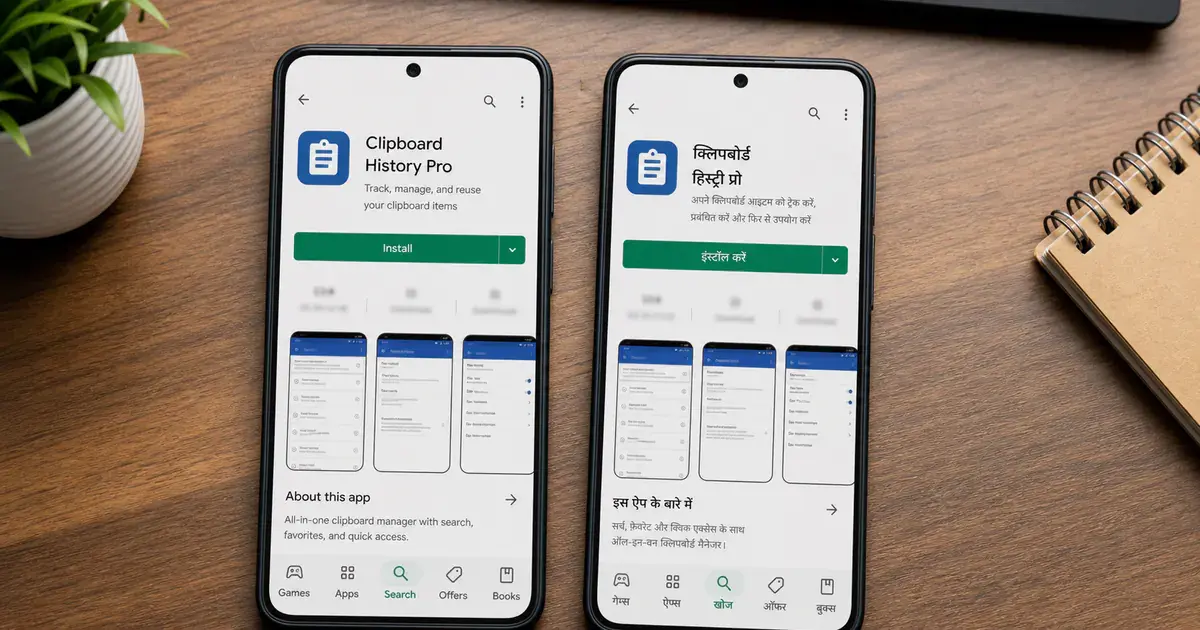
Most teams find custom store listings after they have already built a workaround for the problem custom listings solve. The feature lets you show a different name, icon, description and screenshots to a targeted slice of Play traffic, and Google documents both the ceiling and the constraints. The constraints are where the plans usually break.
On this page
- What problem does a custom store listing solve?
- How many can you create, and what can you change?
- Which audience segments can you target?
- Why can only one listing own a country?
- What happens in languages you did not translate?
- How do URL and ads-targeted listings differ?
- What does keyword targeting change about ASO?
- Where do pre-registration and lapsed-user listings break?
- How do you operate this without creating a mess?
- Frequently Asked Questions
What problem does a custom store listing solve?
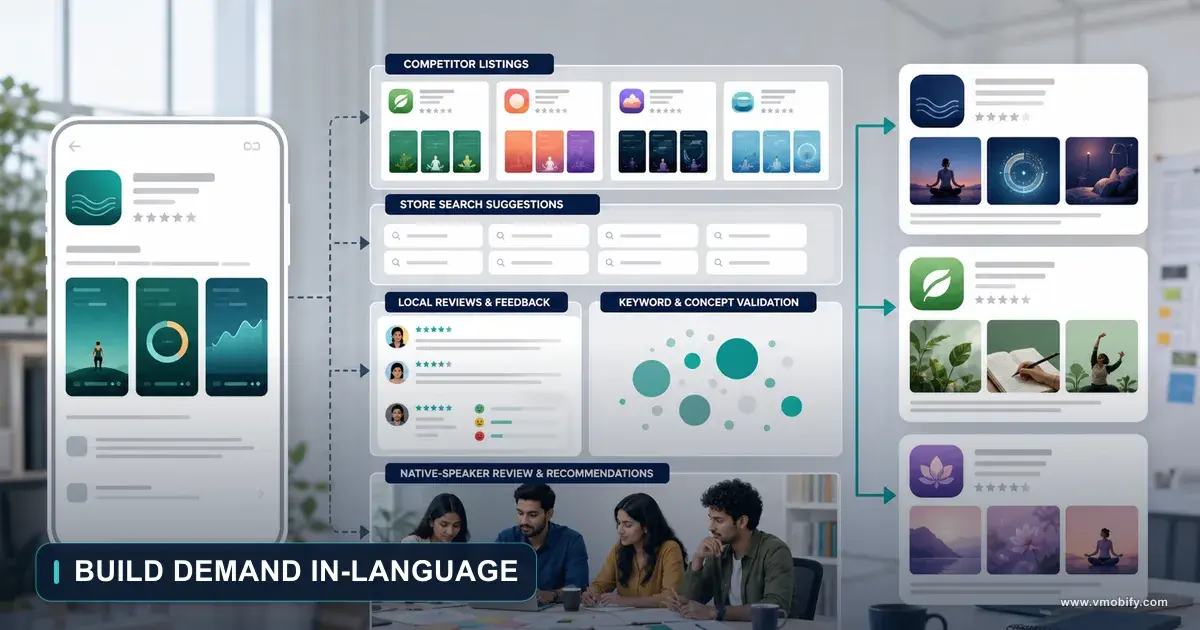
It solves the problem of one listing having to speak to several unrelated audiences at once — Google's own framing is that you can tailor your listing to appeal to specific user segments, or to users who arrive via a unique custom store listing URL. If your listing currently reads like a compromise between three markets and two use cases, this is the feature that removes the compromise.
The Play Console documentation on custom store listings gives the intended use cases directly: targeting users in different countries, users who have pre-registered, users who search for specific keywords, or inactive users. There is a second family of uses built around arrival context — a unique URL, or a specific Google Ads campaign.
That distinction is worth holding onto, because it separates two very different kinds of work:
Targeting by who the user is
- Country or region
- Churned, lapsed, non-buyer, buyer states
- Pre-registration
- Custom audiences you define
- Play decides which listing to show
Targeting by where they came from
- A unique custom store listing URL
- A Google Ads campaign ad group
- Play Search keywords
- Your marketing decides which listing they see
The first group is an audience problem. The second is a message-match problem — the gap between what an ad promised and what the store listing then says. Google's fitness-app example makes the point plainly: an app covering swimming, running, cycling and yoga can give each activity its own listing and embed the matching URL on the page that markets that activity.
Across the 300+ apps we have managed since 2013, the message-match case is the one teams underuse: everyone thinks of localisation first, and almost nobody notices that their highest-spend channel drops users onto a listing written for a different intent.
Custom listings are also not store listing experiments, and mixing them up wastes weeks. An experiment tells you which of two variants converts better on the same audience. A custom listing shows a chosen variant to a chosen audience with no comparison built in. We cover that in our guide to running store listing experiments on Play.
How many can you create, and what can you change?
Google states you can create up to 50 custom store listing pages, and that for each one you can customise your app's name, icon, descriptions and graphic assets. The ceiling is high enough that it is almost never the binding constraint — the binding constraint is how many distinct sets of screenshots your team can actually maintain.
Three documented details shape the whole design:
- Some fields are shared and cannot vary. Google states that your app's contact details, privacy policy and app category are shared across all versions of your app's store listing. If your plan depends on a different category per market, the plan does not work.
- Your existing listing becomes the fallback. Google states that if you have already created an app with a store listing, its existing store listing becomes its default store listing, which is shown to users in countries that you do not target with a custom store listing.
- You need a published app first. The creation flow states that if you do not already have a default store listing, you need to create one and publish your app before you can create a custom store listing.
The customisable set — name, icon, short and full description, screenshots and video — is broad enough to change the perceived product, not just the wording. A different name and icon per audience deserves caution: the icon is what users recognise on their own home screen after install.
Every listing is a set of assets someone must update at the next brand refresh, feature launch and policy change. Fifty listings is fifty maintenance obligations. We have never seen a portfolio app need anywhere near that number, and we have seen several where stale listings quietly contradicted the current product.
Google addresses that cost with store listing groups. Listings inside a group inherit its icon, screenshots, descriptions and other assets by default, and Google states that updating a group asset updates it in all listings in the group. One further detail catches people: a listing's name and a group's name cannot be edited once created, so name them for the segment rather than the campaign.
Which audience segments can you target?
Google documents twelve targeting options, and they are considerably more granular than the country-level targeting most teams assume is all there is. The purchase-behaviour segments in particular are closer to a lifecycle marketing tool than to classic ASO.
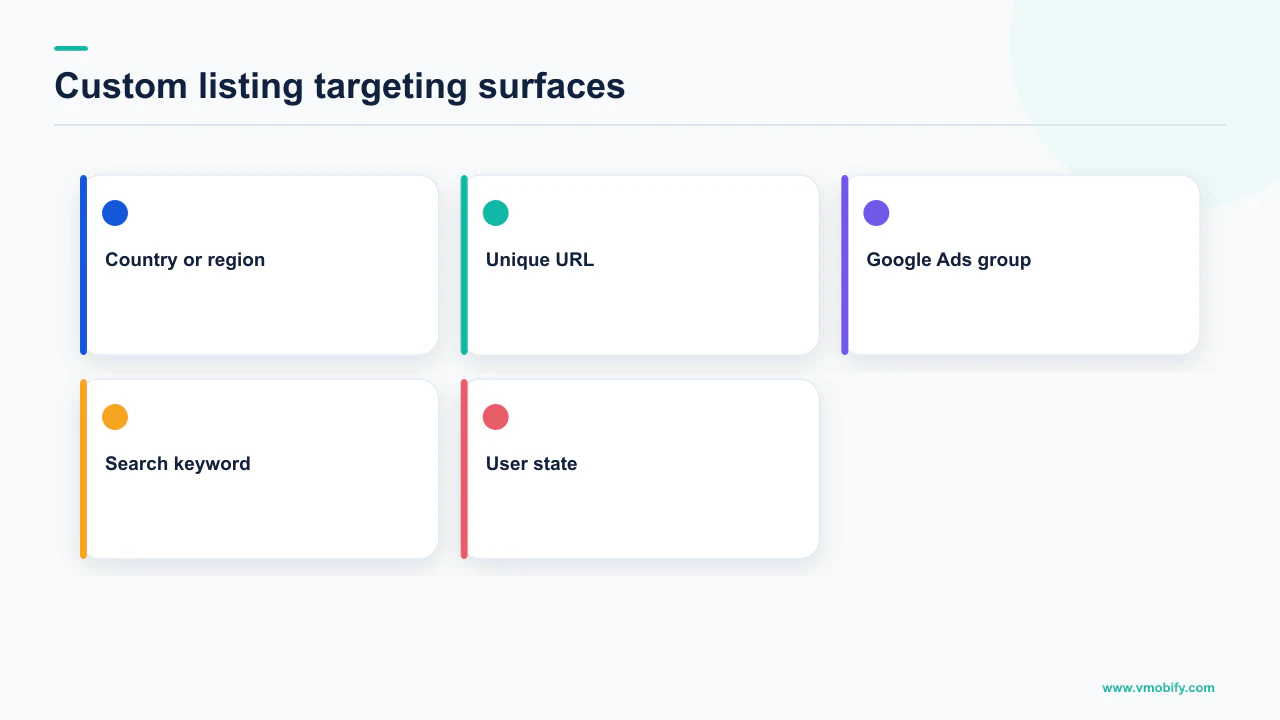
The documented definitions:
- Churned users — "Users who uninstalled your app."
- Lapsed users — "Users who haven't opened your app in the last 28 days."
- Lapsed and churned users — "Users who uninstalled your app or haven't opened your app in the last 28 days."
- Non-buyers — "Users who installed your app but never bought from it."
- One-time buyers — "Users who bought from your app once."
- Repeat buyers — "Users who bought from your app more than once, including subscription payments."
- Lapsed buyers — "Users who bought from your app but haven't bought in the last 180 days."
- Ads traffic — "Users targeted by your ads traffic."
- Country/Region — "Users in a specific location."
- Pre-registration — "Users who can pre-register for your app."
- Search keywords — "Users who discover your app on Play using specific search terms."
- Custom audiences — "Groups of users (created by you) based on specific behaviors or attributes."
Note the two hard-coded windows: 28 days for lapsed, 180 days for lapsed buyers. Those are Google's definitions, not settings you tune. Our piece on win-back campaigns for lapsed users covers what to do with the audience once you can address it.
The last option has real prerequisites. Google's page on defining your own user groups with custom audiences notes that promotional content is available for apps meeting its eligibility criteria for premium growth tools, and offers two data sources: the Play Grouping API or a CSV email list. For the email route the rules are specific — a minimum of 5,000 addresses in the original CSV, serving stops if the audience falls below that threshold, matching usually takes around 24 hours, and email list audiences expire after 90 days. The API route has its own gate: Google states the Grouping API is only available to select Play partners who meet its eligibility criteria.
So country, keyword, URL, ads and lifecycle-state targeting are available to ordinary developers, while custom audiences sit behind an access programme. Plan the first five as your baseline and treat the sixth as an upgrade you may not qualify for.
Why can only one listing own a country?
Because Google enforces exclusivity: you can target multiple countries with a custom store listing, but you can only target a country with one custom store listing at a time. This single rule quietly determines your whole country strategy, and it is the one teams discover halfway through building the second listing.
Google's own example is unambiguous — if you have a custom store listing that targets the United States and Canada, you cannot target the United States and Canada with other custom store listings. There is no stacking, no priority order, no fallback chain within country targeting.
Country targeting is therefore a partition, not a layer. Each country belongs to exactly one custom listing or to the default listing. That forces a decision most teams would rather defer: for a given market, what is the single most important thing to say?
The temptation is to name listings after regions. The better unit is the message. If your Indian and Indonesian audiences both respond to low data usage and offline mode, that is one listing covering two countries, not two that will drift apart in six months.
Distribution also produces confusing empty states. Google lists the common reasons a country cannot be selected: it is already targeted by a different custom store listing, you have not yet released to production or a testing track there, or you do not distribute the app there at all. If a market is greyed out, work through those three before assuming a bug.
One further note that matters for staged launches — Google states that if the app is in internal, open or closed testing tracks, it will only be discoverable for users in these tracks. A custom listing for a market you have not launched in is not a pre-launch marketing surface for the general public. For that, pre-registration is the documented mechanism, and we cover the sequencing in pre-launch app marketing.
What happens in languages you did not translate?
They fall back to the custom listing's default language, because Google states custom store listings are not automatically translated. This is the sharpest behavioural difference between a custom listing and your default listing, and it produces the most common self-inflicted wound in this whole feature.
The rule as documented: custom store listings are not automatically translated, so you choose a default language when you create them; unless you add translations they are shown in that default language to users in the countries you select; and Google recommends adding translations for all languages spoken in the countries you target.
Google's worked example spells out the failure mode. A custom listing for Singapore with a default language of English means Malay-language users there see it in English, precisely because custom store listings do not include automated translations. The default listing does get automatic translation — a Spanish-language user in the United States sees it auto-translated into Spanish.
Read that carefully, because it inverts the intuition. Creating a custom listing for a market can reduce the number of languages that market is served in, unless you do the translation work yourself. A listing built to improve relevance in Singapore can make the experience worse for a chunk of Singapore.
- List the languages actually spoken in every country targeted before writing a word of copy. Not the official language — the languages your users read.
- Choose the default language covering the largest share, and accept it is a fallback for everyone else.
- Add translations for the remaining languages as part of shipping the listing, not as a later phase. A later phase means never.
- Check the codes against the supported list. Play's translate and localise guidance publishes the exact set, with separate entries for English in India, Singapore and South Africa and for Spanish in Spain, Latin America and the United States.
- Decide whether a custom listing is the right tool at all. Google notes that to deliver content based on the user's language preference, you should consider adding translations for your app instead.
If your problem is purely linguistic, translations on the default listing solve it with far less maintenance. Custom listings earn their keep when the argument changes by market, not just the words. Our store localisation strategy guide works through where that line sits.
How do URL and ads-targeted listings differ?
A URL-targeted listing is under your control and works anywhere you can place a link; an ads-targeted listing is wired to a Google Ads ad group and carries documented coverage limits. They look similar in the console and behave very differently in practice.
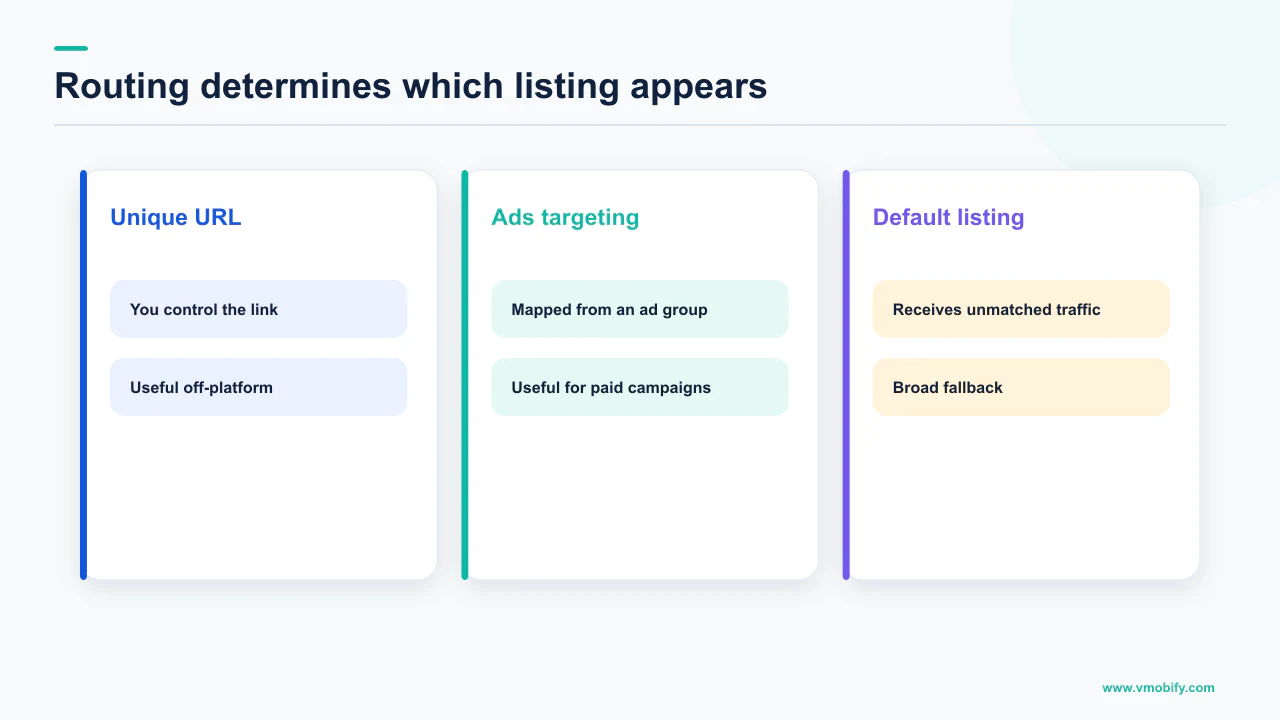
For URL targeting, Google documents the mechanics precisely. You must provide a string parameter that is unique across all your custom store listings. Valid inputs for the parameter are lowercase alphanumeric characters plus period, hyphen, underscore and tilde. Once created, the listing is reachable at https://play.google.com/store/apps/details?id=[packageName]&listing=[parameter].
That is a plain URL, which makes it the most portable version of this feature: it works from your website, an email, a partner page, a QR code. The parameter names become a taxonomy you will live with, so pick a convention before the first one.
Ads targeting is a different arrangement. You choose "Ads Traffic" as the target audience and paste in the Google Ads AdGroupID; Google states that once the listing has been reviewed and approved, you select it as one of the landing pages in your Google Ads account. Two documented conditions travel with that:
Google states that ads-targeted listings do not yet support all of Google Ads' formats for app campaigns, and that you should expect to see custom assets when arriving at your listing from Google's AdMob network on Android. On reporting, it states that ads custom store listings are only currently showing on AdMob and notably exclude ads on Google Play search, so they will generate fewer visitors than the app campaign total and will never match those numbers.
That resolves an argument we have watched several teams have with themselves: a gap between app campaign volume and ads-listing visits is documented expected behaviour, not a tracking fault. Google also lists two causes of an ads-targeted listing reporting zero visits — the listing has not been fully reviewed, approved and selected as a landing page in the campaign, or it has not received enough visitors to appear in the store listing performance breakdown.
So for paid traffic, start with URL-targeted listings wherever the channel permits a custom link, and treat ads targeting as the Google Ads mechanism specifically, with expectations set on coverage. If you are running app campaigns alongside this, our diagnosis of campaigns that will not spend covers the adjacent failure modes.
What does keyword targeting change about ASO?
It lets the listing answer the query — you define the set of Play Search keywords that will lead users to a specific custom store listing, rather than writing one description that has to serve every query at once. For a multi-feature app this is the most interesting option in the whole feature set.
The documented flow: select "Search keywords" as the target audience, then choose from the available keywords known to bring you traffic, or enter and run searches for new ones. Each keyword is a bundle rather than a single string — Google lets you click "View variations" for any keyword to see the spelling corrections and translations it includes, and select or deselect items as needed.
That bundling detail matters. You are not claiming an exact match but a cluster including misspellings and translated forms, and you can prune it. A team that skips the variations screen may serve a listing to queries it never intended to answer.
The shift is from one listing optimised for a weighted average of your queries to several each optimised for one intent. A budgeting app ranking for both "expense tracker" and "split bills with friends" no longer has to lead its screenshots with a compromise.
Two constraints keep this honest. You choose from keywords known to bring you traffic, so this operates on demand that already exists — it does not create ranking where you have none. And Play's store listing best practices apply to every one of these listings, including the rules against keyword repetition, against text indicating store performance or ranking such as "App of the year" or "#1", and against price and promotional information in images and text. Fifty listings is fifty chances to trip a policy.
Google notes you may see an option to "Generate descriptions using Gemini", which generates descriptions from your published default store listing text and your chosen search terms, and that you can insert, edit or discard the suggestions. It is a first draft that still has to clear the same policy bar as anything you write by hand.
Google does not publish an uplift figure for keyword-targeted listings, and neither will we. The mechanism is documented; the size of the effect is something only your own before-and-after data can establish. How Play matches queries at all is covered in our breakdown of the Play algorithm.
Where do pre-registration and lapsed-user listings break?
Both are state-dependent, and the state changes underneath them — a pre-registration listing stops being seen the moment you release, and lapsed or churned segments do not apply to new apps at all. These are the two segments with an expiry date built in.
Google is explicit about the boundary: user state targeting lets you show a different listing to users in countries or regions where your app is in pre-registration, and users in countries or regions where your app has been released to production or open or closed testing will not see this listing. It is scoped to a phase, not a country.
The phase itself is bounded. Google's pre-registration documentation states that pre-registration campaigns can only last 90 days, after which you need to launch your app to production, and that you can make up to two apps or games available for pre-registration at a time. At launch, all pre-registered users receive a push notification from Google Play to install the app and eligible devices also have it auto installed on launch day — though users who already have a test version installed will not receive that notification.
Auto install carries conditions that must travel with the claim, because quoting it unconditionally is simply wrong. Google states the user can only use auto install if they have an Android M+ device and are using Google Play Store version 19.2+, that accounts belonging to children under 13 and managed enterprise accounts are not eligible to auto install apps, and that availability depends on app size:
Google adds that ineligible devices still receive the standard pre-registration launch notification, and that Play will reattempt to auto install when the device meets the conditions. If your app is above two gigabytes, download size is a launch-day conversion project, not a backlog item.
The lifecycle segments fail more simply: Google states that churned, lapsed and lapsed-and-churned options do not apply to new apps. Building the win-back listing before launch is wasted work — launch, accumulate a lapsed cohort, then write to it.
How do you operate this without creating a mess?
Constrain the number of listings to the number of genuinely distinct arguments you can maintain, keep them in groups so shared assets update once, and decide in advance how each listing will be judged. The feature's risk is not technical failure; it is quiet asset drift across a dozen pages nobody owns.
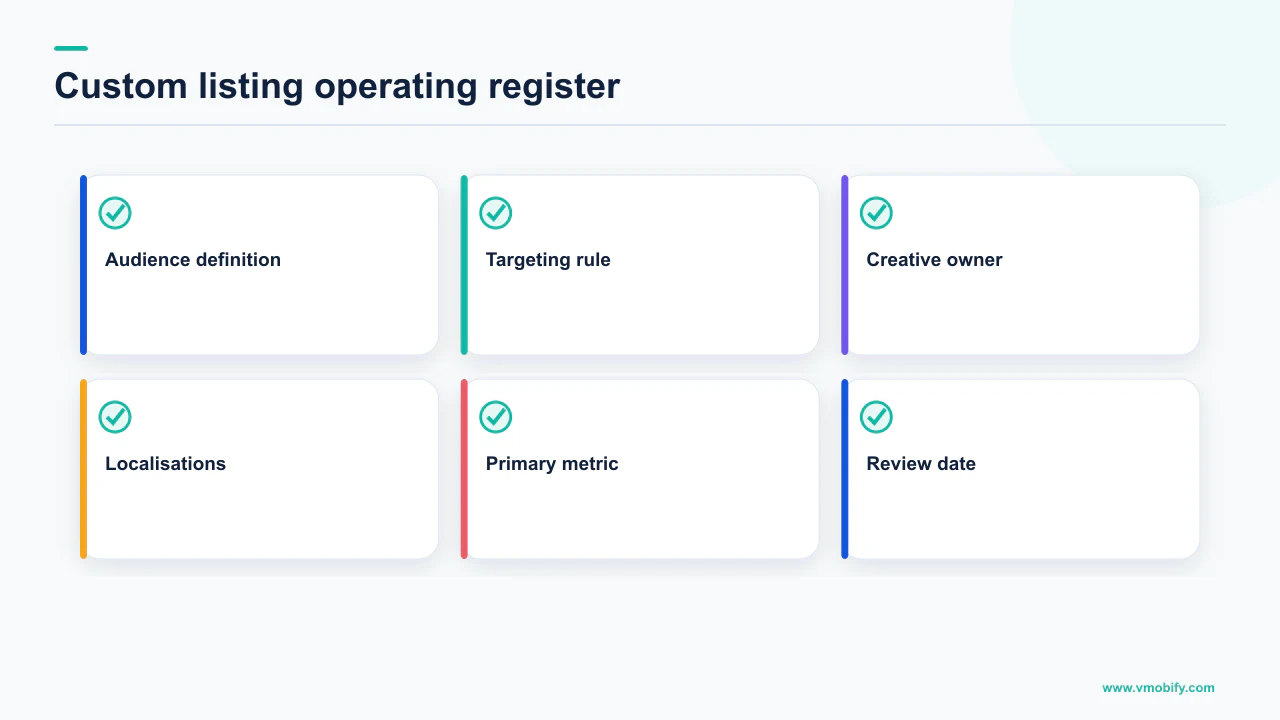
- Write the argument before the assets. One sentence per listing: who sees it, what it claims, why that beats the default listing for this audience. If two listings produce the same sentence, they are one listing.
- Put every listing in a group, so a shared asset updates across all of them at once. That is the difference between one icon change and fourteen.
- Name for the segment, permanently. Names cannot be edited once created, for both listings and groups. "Tier 2 metros India" survives a rebrand; "Diwali 2026 push" does not.
- Fix the URL parameter convention up front. Lowercase alphanumeric plus period, hyphen, underscore and tilde, unique across your listings. Renaming later breaks every link already published.
- Set the measurement expectation per targeting type. URL listings can be judged against the traffic you send. Ads listings cannot be reconciled against app campaign totals, by Google's own statement. Country listings need a before-and-after read, because there is no control group.
- Re-audit every listing at each release. A screenshot showing a screen you removed is both a policy risk and a conversion problem, and it will sit there for months because nobody visits that URL internally.
One caveat worth stating plainly: custom store listings are not an experiment framework. There is no holdout and no significance test, so any performance claim is a before-and-after comparison with all the confounds that implies. "Which variant converts better" is a question for a store listing experiment. "Does this audience deserve a different argument" is a question for a custom listing. Apple's equivalent differs enough that the two are not one workstream — we compare the mechanics in our guide to custom product pages on the App Store.
In our portfolio the pattern that holds up is small and deliberate: a handful of country listings grouped by message, one URL-targeted listing per major owned channel, and keyword listings only where the intent genuinely differs from the default listing's pitch. For a second opinion on which segments justify their own listing, send us your targeting map, or see how we approach the listing as a system in our ASO work.
Frequently Asked Questions
How many custom store listings can you have on Google Play?+
Google states you can create up to 50 custom store listing pages. Your existing listing becomes the default store listing, which is shown to users in countries you do not target with a custom store listing. In practice the maintenance cost of each additional listing binds long before the limit does.
Can two custom store listings target the same country?+
No. Google states you can target multiple countries with a custom store listing, but you can only target a country with one custom store listing at a time. Its own example is that if a listing targets the United States and Canada, no other custom listing can target those countries.
Are custom store listings translated automatically?+
No. Google states custom store listings are not automatically translated, so you choose a default language when you create one, and users in the countries you target see that default language unless you add translations. Google recommends adding translations for all languages spoken in the countries you target.
What is the custom store listing URL format?+
Google documents it as https://play.google.com/store/apps/details?id=[packageName]&listing=[parameter]. The parameter must be unique across all your custom store listings, and valid inputs are lowercase alphanumeric characters plus period, hyphen, underscore and tilde.
Why does my ads-targeted listing show fewer visits than my app campaign?+
Google states that ads custom store listings are only currently showing on AdMob and notably exclude ads on Google Play search, so they generate fewer visitors than the app campaign total and will never match those numbers. Google also lists two other causes of zero visits: the listing not being fully reviewed, approved and selected as a landing page in the campaign, or too few visitors to appear in the store listing performance breakdown.
Who can use custom audiences for targeting?+
Google notes that promotional content is available for apps that meet its eligibility criteria for premium growth tools, and that the Play Grouping API is only available to select Play partners who meet its eligibility criteria. For the CSV email-list route, Google requires a minimum of 5,000 email addresses, states matching usually takes around 24 hours, and states that email list audiences expire after 90 days.
How long can a pre-registration listing run?+
Google states pre-registration campaigns can only last 90 days, after which you need to launch your app to production, and that you can make up to two apps or games available for pre-registration at a time. Users in countries where the app has been released to production or open or closed testing will not see the pre-registration listing.
Sources
- Create custom store listings to target specific user segments — The 50-page limit, the twelve targeting options and their definitions, country exclusivity, the URL parameter rules, ads targeting and its AdMob-only coverage note, translation behaviour and store listing groups.
- Define your own user groups with custom audiences — Premium growth tools eligibility, the Play Grouping API and CSV routes, the 5,000-address minimum, roughly 24-hour matching and 90-day expiry for email list audiences.
- Customize your users' experience with the Google Play Grouping API — States the Grouping API is only available to select Play partners who meet Google eligibility criteria, and describes the tagging model.
- Build awareness for your apps with pre-registration — The 90-day campaign limit, two apps at a time, launch push notification, and the conditions on auto install including OS version, Play Store version and app size bands.
- Translate and localize your app — The list of languages available for your own store listing translations, including the separate regional English and Spanish entries.
- Best practices for your store listing — Description limits of 4,000 and 80 characters, and the rules against keyword repetition, ranking claims and price or promotional text in listing assets.
- Add preview assets to showcase your app — Asset requirements versus highly recommended guidelines, and the statement that failure to meet requirements may result in removal or suspension from Google Play.
About the author
Amol Pomane — Founder, Vmobify
Amol leads Vmobify, a mobile app growth agency that has driven 30M+ downloads and ranked 54K+ keywords across 300+ apps since 2013. He writes about ASO, paid user acquisition, retention, and the operational reality of scaling mobile apps in India and global markets.
Check your store metadata
Run your current App Store or Play metadata through the free checker.
Open free tool