Google Play Release Controls: Halting and Undoing a Bad Release
You shipped a bad build, hit halt rollout, and the number of affected users did not fall. That is not a bug — halting a staged rollout and halting a fully rolled-out release are two different operations with two different outcomes, and neither one is a rollback. Here is what each control actually does, why a track’s first release cannot be halted, and how managed publishing changes the shape of the problem before it starts.
On this page
- Which halt did you actually press?
- Why can you not halt your first release on a track?
- Is halting the same as rolling back?
- What does managed publishing actually control?
- Which changes ignore managed publishing entirely?
- How do you get users off a bad version?
- What is the correct sequence for a risky update?
- How do you rehearse the controls before you need them?
- What does a working release setup look like?
- Frequently Asked Questions
Which halt did you actually press?
Google Play has two halt operations that share a button label and produce opposite outcomes, and almost every confused incident call we join turns out to be a team that pressed one while expecting the other. Establish which one you used before you decide whether anything is wrong.
The first is halting a staged rollout — an update that has reached only a percentage of your users. Google’s staged rollout documentation is explicit about what this does: when you halt a staged rollout, no additional users will receive the app version in your existing staged rollout, and users who already received the app version in your staged rollout version will remain on that version.
Read that second clause slowly. Halting a staged rollout is containment, not retrieval. Everyone already on the bad build stays on the bad build. If you halted at 20 per cent, you have frozen the blast radius at 20 per cent; you have not reduced it.
The second operation is halting a release that is already at 100 per cent, which Play documents separately. Here the behaviour is genuinely different: a previously live, fully rolled-out version of your app will automatically take its place and become available to new and eligible users.
Halting a staged rollout
- Applies to a release below 100 per cent
- No further users receive the version
- Users already on it stay on it
- Freezes the damage where it stands
Halting a fully rolled-out release
- Applies to a release at 100 per cent
- The previous fully rolled-out version takes its place
- New and eligible users get the older version
- Requires a previous release to exist
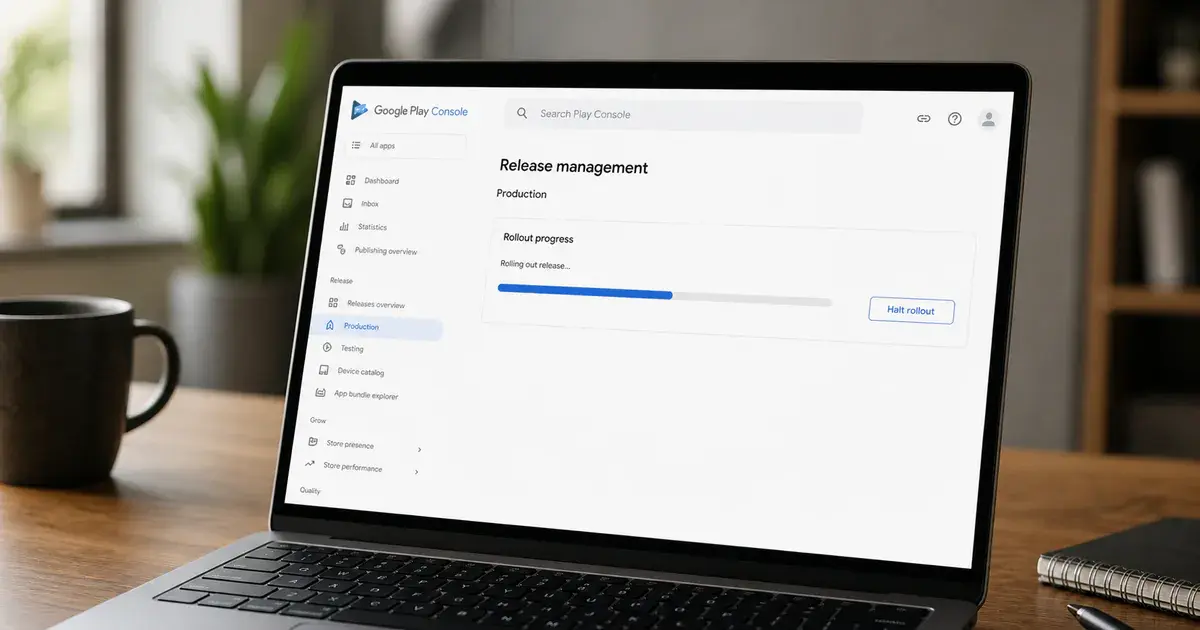
Both live at the same Play Console path — the Releases tab on your track page, then Manage rollout, then Halt rollout. Same label, materially different consequence. Across the 300+ apps we have managed since 2013, that ambiguity has cost more incident minutes than any other Play Console behaviour.
Play frames the second one as damage limitation too. If you discover a critical issue with your app, the halt rollout feature minimises disruption for users by preventing new and existing users from installing, or updating to, the affected version of your app. The mechanism in both cases is the same idea — stop the spread — but only the 100 per cent case has somewhere to fall back to.
Why can you not halt your first release on a track?
Because halting a fully rolled-out release works by promoting the previous version, and on a first release there is no previous version to promote. Google states the restriction plainly: you cannot halt your first release on a track, and if your current 100 per cent release is the very first version of your app on a given track, there will be no previous release available to revert to.
This is not an arbitrary limit. It falls out of the mechanism described in the previous section. The halt control on a fully rolled-out release does not delete anything — it re-points new and eligible users at an older artefact. With no older artefact on that track, the operation has no defined result, so it is unavailable.
The moment you are most likely to ship something broken is your very first production release, and that is precisely the moment the strongest undo control does not exist. A first release on a track is a one-way door until a second release exists behind it. Plan the launch as though halt is unavailable, because it is.
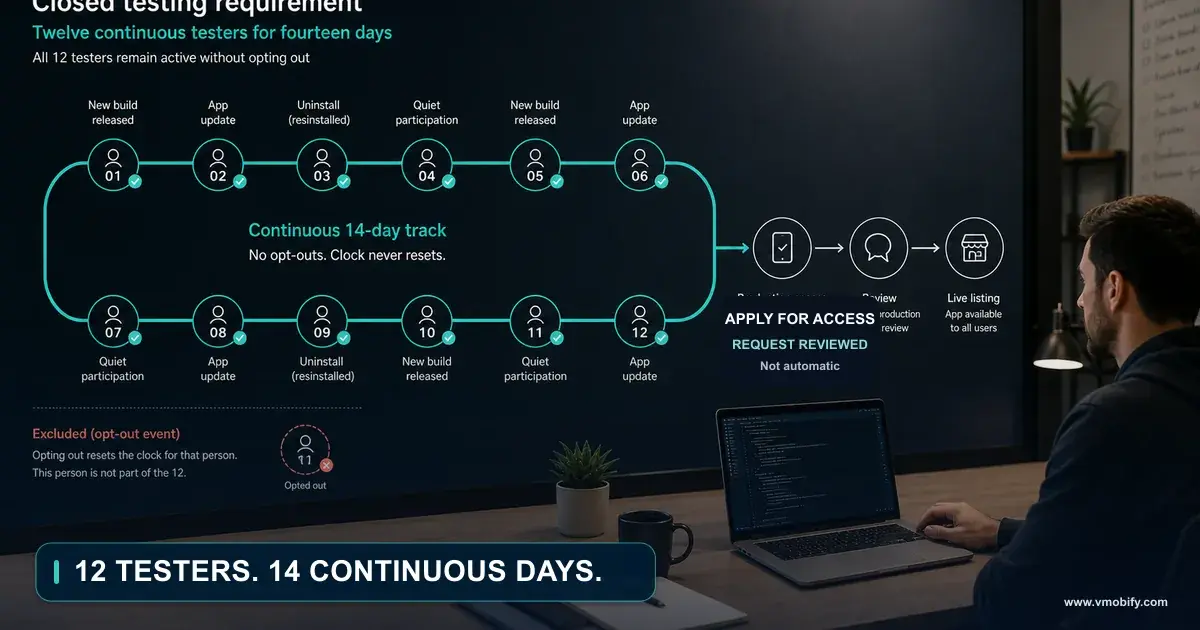
Note the phrase on a track. The restriction is per track, not per app. A production track with no prior production release cannot be halted even if you have shipped fifty builds through internal and closed testing. The testing history does not create a fallback on production. Note also that a first publish has no rollout percentage to fall back on, because Google states staged rollouts can only be used for app updates. Your only safety net on a first release is the rollout percentage itself, which on a first publish is not available either — so a first release goes out at full exposure with no ramp and no halt, and the only real protection is the testing that preceded it — our walkthrough of publishing your first app covers the surrounding setup. Teams who have run a long closed test — and on Play many now must, as we cover in the closed testing requirement for new personal developer accounts — routinely assume their production track inherits that history. It does not.
Is halting the same as rolling back?
No, and treating it as a rollback is the most expensive misunderstanding in this whole area — nothing in Play Console reaches onto a device and removes an installed version. The distinction is worth stating in full because product and engineering teams frequently disagree about it mid-incident.
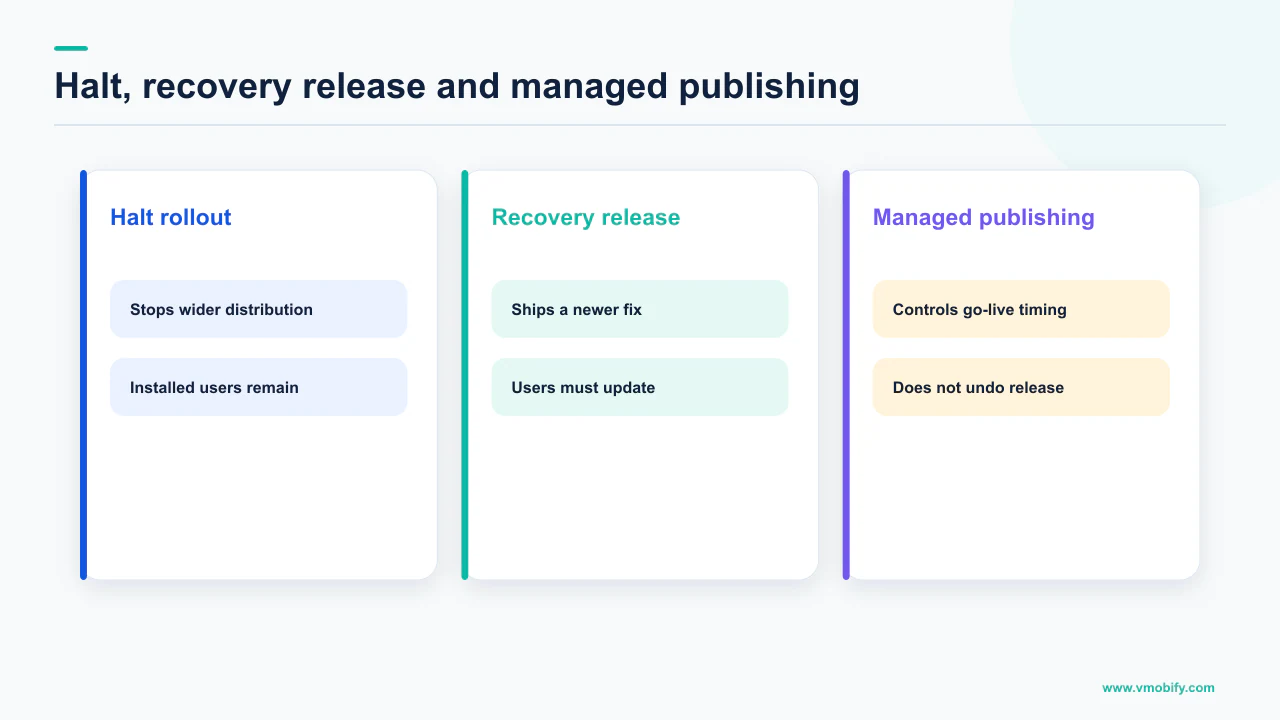
A rollback, in the sense people mean it from server deployments, would mean the bad version stops running everywhere. Play offers nothing of the kind. What it offers is control over distribution: who can newly obtain a version, and which version they obtain. Devices that already installed the bad build keep running it until something replaces it.
So the honest model is three separate populations, and each control touches only some of them:
- Users who have not updated yet. Halting protects these people. This is the entire value of the control, and it is real.
- Users who already updated. Halting does nothing for them. On a staged rollout they explicitly stay on the version they received. On a fully rolled-out release, halting changes what new and eligible users get — it does not uninstall anything.
- Users who install fresh from the store. On a halted 100 per cent release these get the previous fully rolled-out version, which is why that fallback needs to be a version you are actually happy to serve.
There is a second reason the word rollback misleads. Android version codes must increase, so the fix you ship is always a new, higher version — you cannot re-publish the old binary as itself. Recovery is therefore forward: halt to stop the bleeding, then ship a higher version code containing the fix. The old build is a fallback for new installs, never a destination for existing ones.
Write the sentence “halting does not remove the version from devices that already have it” into your incident runbook, above the Play Console instructions. It is the sentence that stops an incident channel from declaring the problem solved while the affected cohort is still on the broken build.
If your symptom is a sudden change in installs or actives rather than a crash, the release controls may not be the right tool at all — the diagnosis in why installs dropped overnight works through the alternatives.
What does managed publishing actually control?
It separates “reviewed and approved” from “live”, so that Play’s review completing no longer means your change is instantly in front of users. This is the control that prevents most of the incidents the halt button exists to clean up,.
Google describes managed publishing as useful for anyone who wants to easily track app changes and their review statuses, or push an app update live at a specific time. When it is on, you can see what changes you submit are in review and what changes are ready for publishing on the Publishing overview page, and nothing goes live until you select Publish changes and confirm — after which changes are published on Google Play within a few minutes.
Two properties make it more flexible than teams expect:
- It can be toggled at any time, including while your change is being reviewed and processed. You do not have to decide before you submit.
- It applies at the app level, gating the batch of pending changes rather than a single artefact. Store listing edits, content declarations and a release can all sit together and go live in one deliberate act.
The timing argument is the one that usually wins the internal debate. Google’s own guidance on review is that processing can take a few hours or up to seven days, or longer in exceptional cases, and it recommends a buffer period of at least a week between submitting your app and going live. Without managed publishing, a submission made on a Thursday can go live at any point across the following week — including at 02:00 on a Sunday, with nobody watching crash and ANR rates and nobody available to halt.
Managed publishing on, permanently, is the default we set for every app we take over. The cost is one extra click per release. The benefit is that every release goes live at a moment a human chose, during hours when that human is awake. We have never had a team ask to turn it back off.
Which changes ignore managed publishing entirely?
A specific documented set of changes publishes immediately regardless of whether managed publishing is on, and one of them is the single most consequential action in your release process. Knowing this list is the difference between managed publishing being a real gate and being a false sense of one.
Google lists the exceptions on the same page. Changes that take effect immediately include:
- Increasing an existing staged rollout to 100 per cent. The one that matters. Your gradual rollout going to everyone is not held for approval.
- Release notes. Edits publish straight away.
- Device exclusion rules and testing track membership changes.
- Unpublishing your app. Deliberately immediate, since it is an emergency control.
- In-app products, and price changes. Relevant to anyone mid-billing library migration.
- Stopping a store listing experiment. Also immediate, for the same emergency reasons.
Sit with the first item. Managed publishing gates the arrival of a new version. It does not gate the expansion of a version that is already partially out. So the riskiest single moment in a staged rollout — the step from a contained percentage to your entire user base — has no second confirmation from the publishing gate. It happens when someone clicks it.
If your release process relies on managed publishing as the “are we sure” checkpoint, you have no checkpoint at the point of highest exposure. Put a human process there instead: a named approver, a fixed soak period, and an explicit look at vitals before anyone raises the percentage. The platform will not ask you twice.
The symmetric read is more cheerful. Because unpublishing and experiment-stopping bypass the gate, your emergency controls stay fast even with managed publishing on. Turning the gate on slows down your routine releases and not your escape hatches, which is exactly the trade you want.
How do you get users off a bad version?
You ship a higher version code and then use in-app updates to pull people onto it, because store-side controls only manage distribution and cannot move a user who already updated. This is the missing half of every halt runbook.
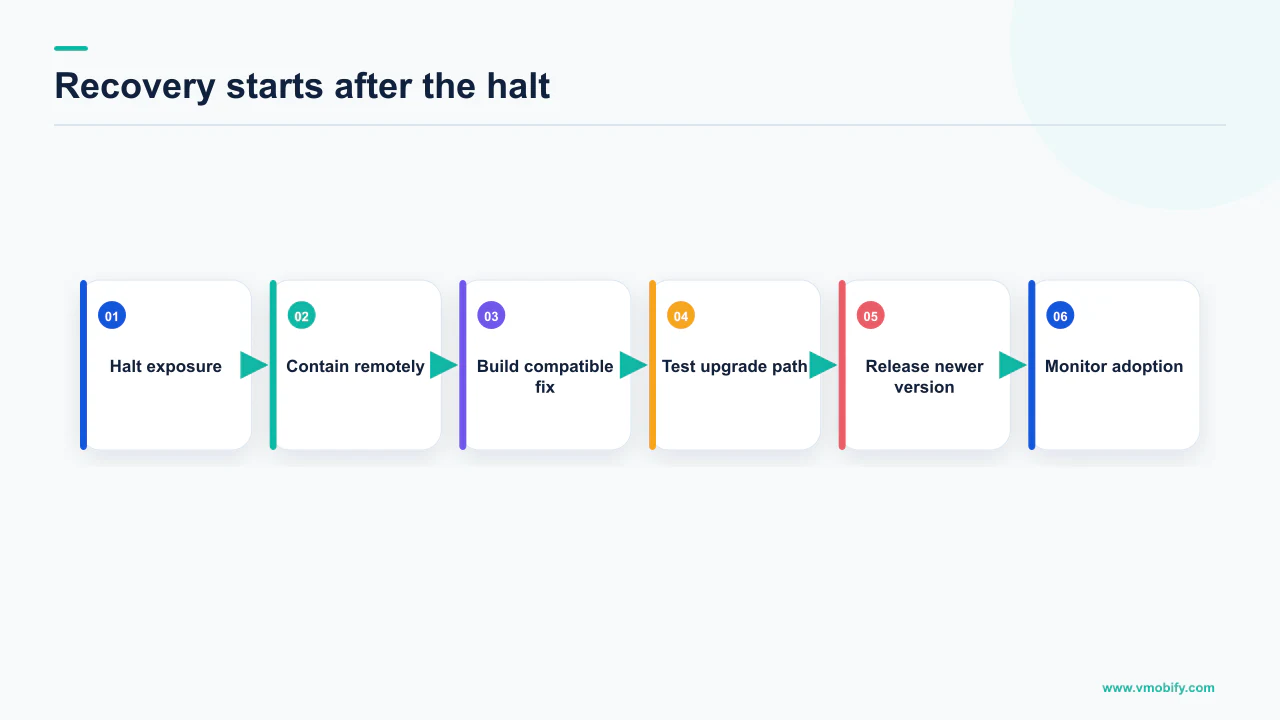
Google’s in-app updates feature prompts active users to update your app, on Android 5.0 (API level 21) or higher across Android mobile devices, tablets and ChromeOS devices. It comes in two flows, and the documentation is clear about which is for which situation.
Flexible
- Background download and installation with graceful state monitoring
- Appropriate when it is acceptable for the user to keep using the app while downloading
- Google’s example: encouraging a new feature that is not critical to core functionality
Immediate
- Fullscreen flow that requires the user to update and restart to continue
- Best where an update is critical to the core functionality of your app
- Play handles the installation and app restart after the user accepts
For a bad release, immediate is the flow you want — it is the only mechanism that reliably takes an already-updated user off a broken build without waiting for their device to update on its own schedule.
Two implementation details decide whether this works when you need it:
- Set update priority on the fix release. Google Play uses an integer value between 0 and 5, with 0 being the default and 5 being the highest priority. It is set through the
inAppUpdatePriorityfield underEdits.tracks.releasesin the Play Developer API. - Set it at rollout time, because you cannot change it afterwards. Google states priority can only be set when rolling out a new release and cannot be changed later. A fix shipped at the default priority stays at the default priority for its whole life.
- Use staleness to escalate.
clientVersionStalenessDays()reports the number of days since the update became available on the Play Store, which Google suggests using to wait a few days before a flexible prompt and a few days more before requiring an immediate one. - Build the client integration before the incident. The API is a client-side integration. If it is not already shipped in the version users are on, it cannot help you with this incident at all.
One compatibility limit to check: in-app updates are not compatible with apps that use APK expansion files. If you ship .obb files, this route is closed and your recovery depends entirely on distribution controls and the device’s own update behaviour.
What is the correct sequence for a risky update?
Submit early, hold at the gate, release at a low percentage during working hours, soak, then expand — because every control described above is stronger before exposure than after it. The sequence below is the one we run, and it is deliberately unexciting.
- Turn managed publishing on before you submit. It can be toggled at any time, but turning it on before submission means review completing never surprises you. Note it is unavailable on a first publish — Google states your app must already be available to use managed publishing.
- Submit with real slack in the calendar. Google recommends a buffer of at least a week between submitting and going live, and review can take up to seven days or longer in exceptional cases. Treat the review window as unpredictable and plan around it rather than against it.
- Publish deliberately, early in a working day. Not Friday afternoon, not the evening before a holiday. You are choosing the moment your incident response is staffed.
- Roll out at a small percentage and leave it alone. Play does not automatically increase the percentage — you must adjust it yourself, which is the property that makes a soak period real rather than aspirational.
- Watch vitals rather than reviews. Crash rate and ANR rate move within hours; ratings lag by days. If you have no dashboard for this, our analytics work starts here.
- Expand in steps, with a named approver at each one. Remember that the jump to 100 per cent bypasses managed publishing, so this is where your human process has to carry the weight.
- If something breaks, halt first and diagnose second. Halting a staged rollout is cheap and fully reversible — you can resume a halted release to any percentage of users, which lets you gradually reintroduce a release after fixing the issue.
Step seven contains the detail that makes halting a low-cost decision rather than an admission of failure. Halting is not terminal. Play states you can resume a halted release to any percentage, and notes that when you halt and then resume the rollout of a release, you are affecting the same set of users. There is no penalty for halting early on a suspicion and resuming an hour later once the numbers come back clean.
How do you rehearse the controls before you need them?
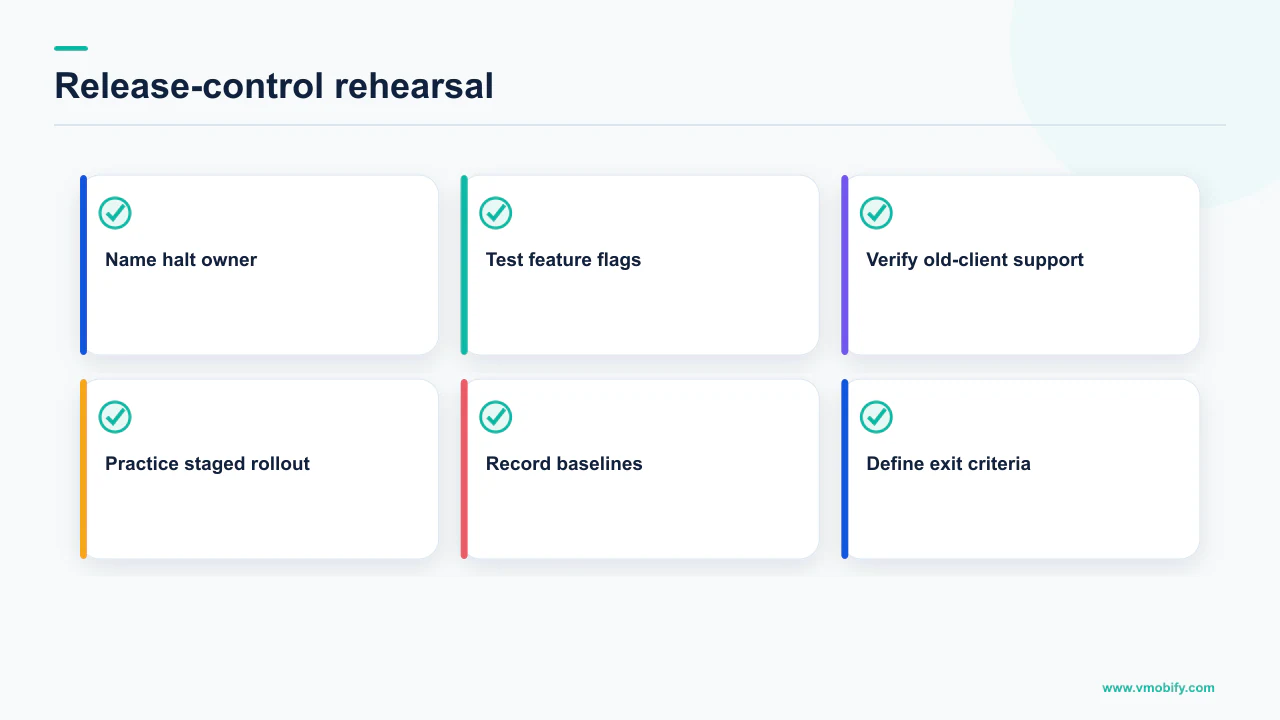
Use the testing tracks and internal app sharing, because both let you exercise the distribution machinery without the constraints that make production releases irreversible. An incident is a poor time to discover which button you have never pressed.
Play documents four tracks with different audiences: internal testing releases are available to up to 100 chosen testers; closed testing releases are available to a limited number of chosen testers; open testing releases are available to testers on Google Play; and production releases are available to all Google Play users in your chosen countries and regions.
Because the first-release restriction is per track, a track that has already carried more than one release supports halting. That makes an open or closed testing track a legitimate rehearsal environment for the exact control you will need in production — roll out, halt, resume, and watch what happens to testers who already updated. The behaviour you observe is the behaviour you will get.
Internal app sharing sits alongside this and removes the constraint that most often blocks rapid iteration. Play states that for internal app sharing, version codes do not need to be new or unique, and you can reuse version codes for app bundles or APKs that you are sharing. That is the opposite of the production rule, and it is what makes internal app sharing suitable for the twenty-build afternoon that precedes a real release.
Roll a release to an open testing track, halt it, then resume it to a different percentage. Fifteen minutes, no production risk, and afterwards nobody on your team believes halting removes the app from devices. That single misconception causes more mishandled incidents in our experience than any other, and this is the cheapest way to kill it.
The other reason to rehearse is that release controls interact with account-level risk. Repeatedly shipping broken builds to production is not merely a quality problem — it feeds a pattern that matters, as we set out in how Play suspension and termination actually work. Getting the release process right is a policy safeguard as much as a technical one.
What does a working release setup look like?
Managed publishing permanently on, a soak at low percentage on every release, in-app updates already integrated, and a runbook that names which halt does what. None of it is complicated. All of it has to exist before the release that needs it.
The four commitments, in the order they pay off:
- Managed publishing stays on. One extra click per release buys you control over the moment every change goes live, and the exceptions list is short enough to memorise.
- Every production release starts at a percentage, not at 100. Play will not raise it for you, so a soak period happens by default rather than by intention.
- In-app updates ships in the app before you need it, with priority set at rollout time on every release, because it cannot be changed later.
- The runbook distinguishes the two halts, and states plainly that neither removes an installed version from a device.
One honest limitation to record alongside these. We are not going to publish a figure for how much a staged rollout reduces incident cost, or what percentage of releases need halting, because Google publishes no such benchmark and any number we produced from our own portfolio would be a claim about our client mix rather than about Play. The direction is well evidenced and the mechanism is documented; the magnitude is not publishable, and we would rather say so than decorate the argument with a number nobody can check.
What is documented, and what should shape your process, is narrow but decisive: halting a staged rollout leaves existing users on the version they have; halting a fully rolled-out release promotes the previous one; a track’s first release cannot be halted at all; managed publishing gates new changes but not the expansion to 100 per cent; and update priority is fixed at rollout. Design the process around those five facts and most release incidents become boring.
If your last release went out at a time nobody chose, to a percentage nobody set, with no way back — that is a process gap rather than a Play limitation, and it is a quick one to close. Tell us what your current release sequence looks like and we will tell you which of the five facts above is currently costing you the most.
Frequently Asked Questions
Why did halting the rollout not reduce the number of affected users?+
Because you halted a staged rollout. Google states that when you halt a staged rollout, no additional users will receive the app version, and users who already received it will remain on that version. Halting a staged rollout freezes the blast radius where it stands rather than shrinking it. Only halting a release that is already at 100 per cent causes a previous fully rolled-out version to take its place for new and eligible users.
Why is the halt option unavailable on my release?+
Most likely because it is the first release on that track. Google states you cannot halt your first release on a track, since if your current 100 per cent release is the very first version of your app on that track there will be no previous release available to revert to. The restriction is per track, so a long testing history does not create a fallback on production.
Can I roll back to the previous version of my app on Google Play?+
Not in the sense of removing the bad version from devices. Play controls distribution, not what is installed. Halting a fully rolled-out release makes the previous fully rolled-out version available to new and eligible users, but devices that already updated keep the version they have. Because Android version codes must increase, the fix is always a new, higher build.
What does managed publishing actually stop?+
It holds reviewed changes until you publish them. Google describes it as useful for tracking app changes and their review statuses, or pushing an app update live at a specific time, and changes go live within a few minutes of you selecting Publish changes. It can be turned on or off at any time, including while a change is being reviewed and processed.
Does managed publishing gate a staged rollout going to 100 per cent?+
No. Increasing an existing staged rollout to 100 per cent is on Google’s list of changes that publish immediately regardless of managed publishing, along with release notes, device exclusion rules, testing track membership, unpublishing, in-app products, prices and stopping store listing experiments. The riskiest step in your rollout has no platform-side confirmation, so put a human approval there instead.
How do I force users onto the fixed version?+
Use in-app updates with the immediate flow, which Google describes as a fullscreen flow requiring the user to update and restart the app to continue, best where the update is critical to core functionality. Set inAppUpdatePriority on the fix release — an integer from 0 to 5 — and note that priority can only be set when rolling out a new release and cannot be changed later.
Can I resume a release after halting it?+
Yes. Google states you can resume a halted release to any percentage of users, which allows you to gradually reintroduce a release after fixing the issue, and that halting then resuming affects the same set of users. Halting is reversible, so there is no cost to halting early on a suspicion and resuming once the numbers come back clean.
Sources
- Play Console Help — Halt a fully rolled-out release — States the previous fully rolled-out version takes its place, and that you cannot halt your first release on a track.
- Play Console Help — Release app updates with staged rollouts — Halting a staged rollout leaves existing recipients on that version; resuming affects the same set of users.
- Play Console Help — Control when app changes are reviewed and published — Managed publishing behaviour, the toggle-at-any-time property, the exceptions list and the recommended one-week buffer.
- Play Console Help — Prepare and roll out a release — Definitions and audiences for the internal, closed, open and production tracks.
- Android Developers — In-app updates overview — Flexible versus immediate update flows, supported devices, and the APK expansion file incompatibility.
- Android Developers — Support in-app updates (Kotlin/Java) — Update priority range 0 to 5, set only at rollout and not changeable later, plus clientVersionStalenessDays.
- Play Console Help — Share app bundles and APKs internally — Version codes do not need to be new or unique for internal app sharing and can be reused.
About the author
Amol Pomane — Founder, Vmobify
Amol leads Vmobify, a mobile app growth agency that has driven 30M+ downloads and ranked 54K+ keywords across 300+ apps since 2013. He writes about ASO, paid user acquisition, retention, and the operational reality of scaling mobile apps in India and global markets.