Play App Signing: The SHA-1 That Breaks Sign-In
Sign-in works on your device, works on the tester’s device, and fails for every real user the day you go live. Nothing in your code is wrong. Google Play re-signs your app with a key you have never seen, and the fingerprint you registered with Google Cloud belongs to a different certificate entirely. Three keys are in play, and knowing which is which resolves this in ten minutes.
On this page
- Why does sign-in work in debug and fail in production?
- Which keys actually exist, and who holds each one?
- Where do you find the fingerprint you actually need?
- Why did it work in internal app sharing?
- What else breaks from the same root cause?
- How do you fix it right now?
- How do you verify the fix before shipping?
- What happens when the signing key changes?
- How do you stop this happening on the next app?
- Frequently Asked Questions
Why does sign-in work in debug and fail in production?
Because Google Play signs the app your users download with a key you do not hold, so the certificate fingerprint your API provider is checking against never matches the app doing the asking. Your code is fine. Your OAuth client is fine. The certificate is different.
Google states the requirement directly in its documentation on Play App Signing: because Google signs the final APK, you must register the Google-held app signing key fingerprint with your API providers, not just your local upload key.
That single sentence is the entire bug. The build on your machine is signed with your debug or upload certificate, whose SHA-1 you dutifully pasted into Google Cloud Console. The build on the Play Store is signed by Google with a different certificate. When that build asks for an OAuth token, the fingerprint presented does not match the one registered, and the request is refused.
The failure has a characteristic shape that makes it identifiable before you debug anything:
- It works everywhere you test and nowhere real. Local builds, side-loaded APKs and anything signed with your own keystore behave perfectly.
- It fails for 100% of production users, not intermittently. Certificate matching is binary. A partial failure rate points somewhere else entirely.
- Nothing in your logs suggests a certificate. You typically get a generic developer or configuration error, which sends teams looking at scopes, client IDs and manifest entries for hours.
It is worth separating this from the two failures it is most often confused with. A wrong or missing OAuth client ID fails everywhere including your own device, so if local sign-in works you can rule it out immediately. A consent screen or scope problem typically fails after the account picker appears, having got far enough to ask Google for something specific. The certificate mismatch fails earlier and more bluntly, before any meaningful negotiation happens, and it fails for every production user at once while your own build carries on working. That combination — universal in production, perfect in development, failing early — is close to diagnostic on its own.
Across the 300+ apps we have managed since 2013, this is the single most common launch-day authentication failure on Android, and it is almost always found by someone who has seen it before rather than by debugging. It costs teams a day the first time and ten minutes every time after.
Which keys actually exist, and who holds each one?
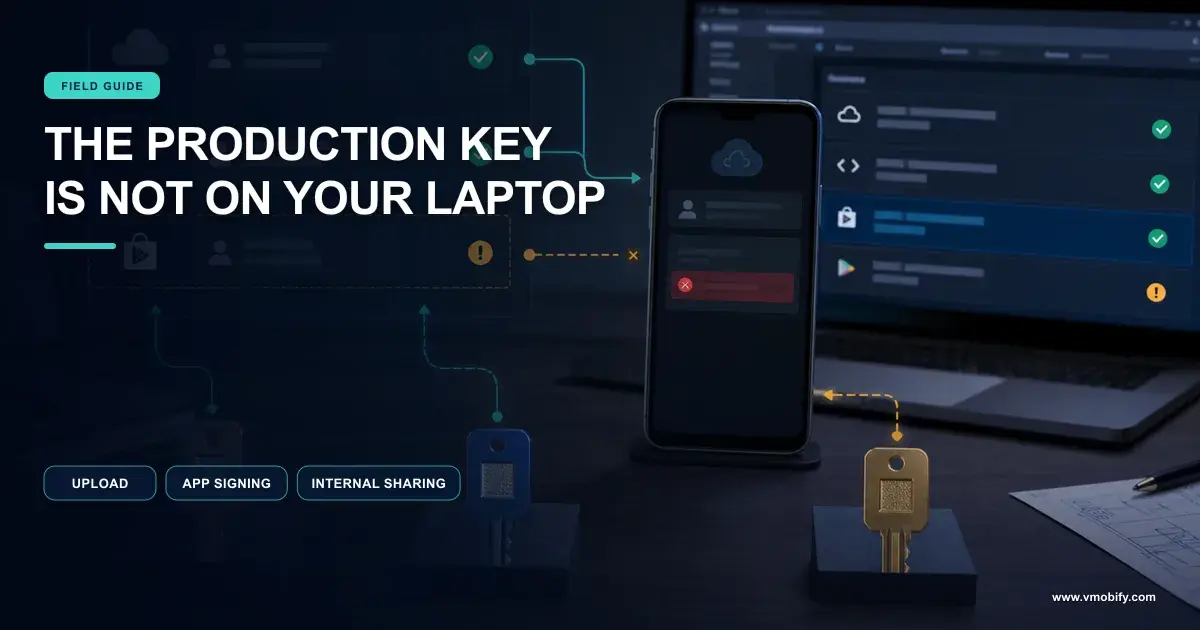
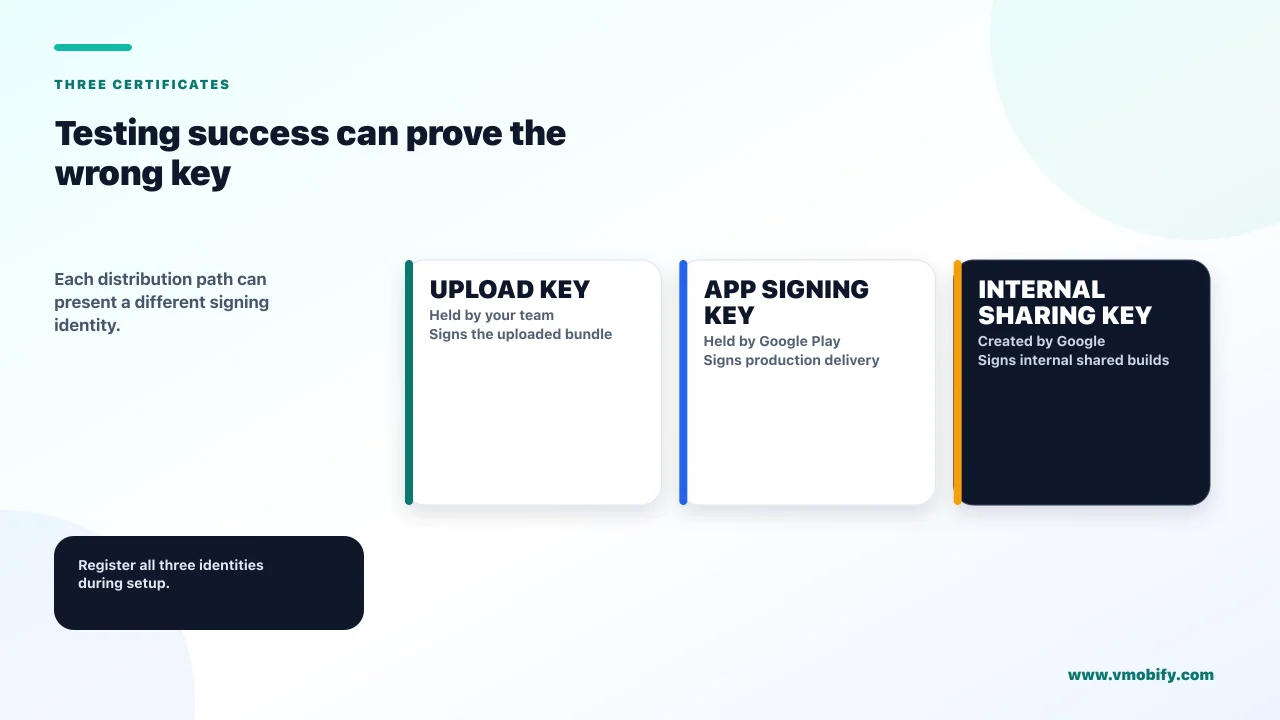
Three, not two — and the third one is why "it worked in testing" is such a confusing data point. Most explanations of this problem stop at two keys, which is why they leave people stuck.
Upload key — you hold it
- Java keystore format,
.jksor.keystore - Minimum RSA 2048-bit
- Signs your app bundle before upload; Google uses it to verify your identity
- Its fingerprint is not what users' devices present
App signing key — Google holds it
- Google-generated keys are RSA 4096-bit
- Google "uses this key to sign the final APKs delivered to users' devices"
- Managed on the same infrastructure Google uses for its own keys
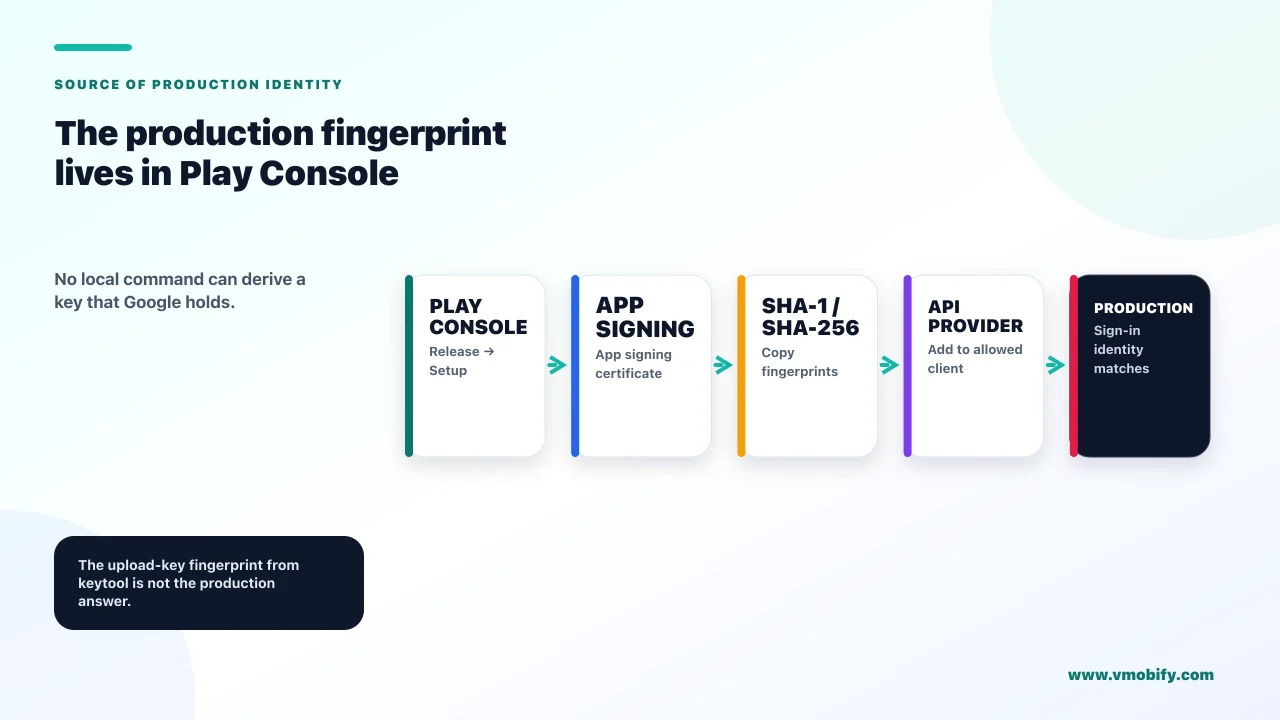
- This is the fingerprint your API providers need
The third key is the one nobody mentions. Google's documentation on sharing app bundles and APKs internally states that uploaded artifacts for internal app sharing can be signed with any key and do not need to be signed with a production or upload key, because they are automatically re-signed with an Internal App Sharing key which is automatically created for your app by Google.
So an internal app sharing build carries a third certificate, different again from both your upload key and your production app signing key. Play Console generates that test certificate on first upload and lets you download its fingerprint from the internal app sharing section.
This is why the testing evidence is so misleading. "It worked when I shared it internally" and "it works in production" are statements about two different certificates, and either can be true while the other is false. If sign-in works for your internal testers and fails in production, you have registered the internal app sharing fingerprint and not the app signing one — an easy mistake, because both are legitimate fingerprints found in Play Console.
Where do you find the fingerprint you actually need?
In Play Console, not on your machine — Google's own client authentication guidance says the local keytool output will not be the right certificate when Play App Signing is in use. Every command you would instinctively run gives you the wrong answer.
Google's client authentication documentation states plainly that when using Play App Signing, the upload key certificate will be different from the app signing key certificate, and directs you to retrieve the SHA-1 from Play Console rather than from your local keystore.
For completeness, here is what each local method actually gives you, so you can recognise a wrong answer when you see one:
keytool -list -v -alias androiddebugkey -keystore ~/.android/debug.keystorereturns your debug certificate. Default password isandroid. Useful for local development only.keytool -list -v -alias <key> -keystore <production-keystore>returns your upload certificate. This is the one most teams register by mistake../gradlew signingReportreturns whatever your Gradle config signs with — again, your keys, never Google's.- Play Console → Release → Setup → App signing returns the app signing key fingerprint. This is the one. Copy the SHA-1 or SHA-256 from the app signing key section.
There is no local command that can produce Google's app signing certificate fingerprint, because you do not have the key. That is the point of the service. If your process for setting up a new environment involves running keytool, it will produce a working development setup and a broken production one every single time.
Keep your upload or debug fingerprint registered as well, or you will fix production and break local development on the same afternoon. Google Cloud Console and Firebase both accept multiple SHA fingerprints per app for exactly this reason. Register the debug, the upload and the app signing certificates and the problem stops recurring.
Why did it work in internal app sharing?
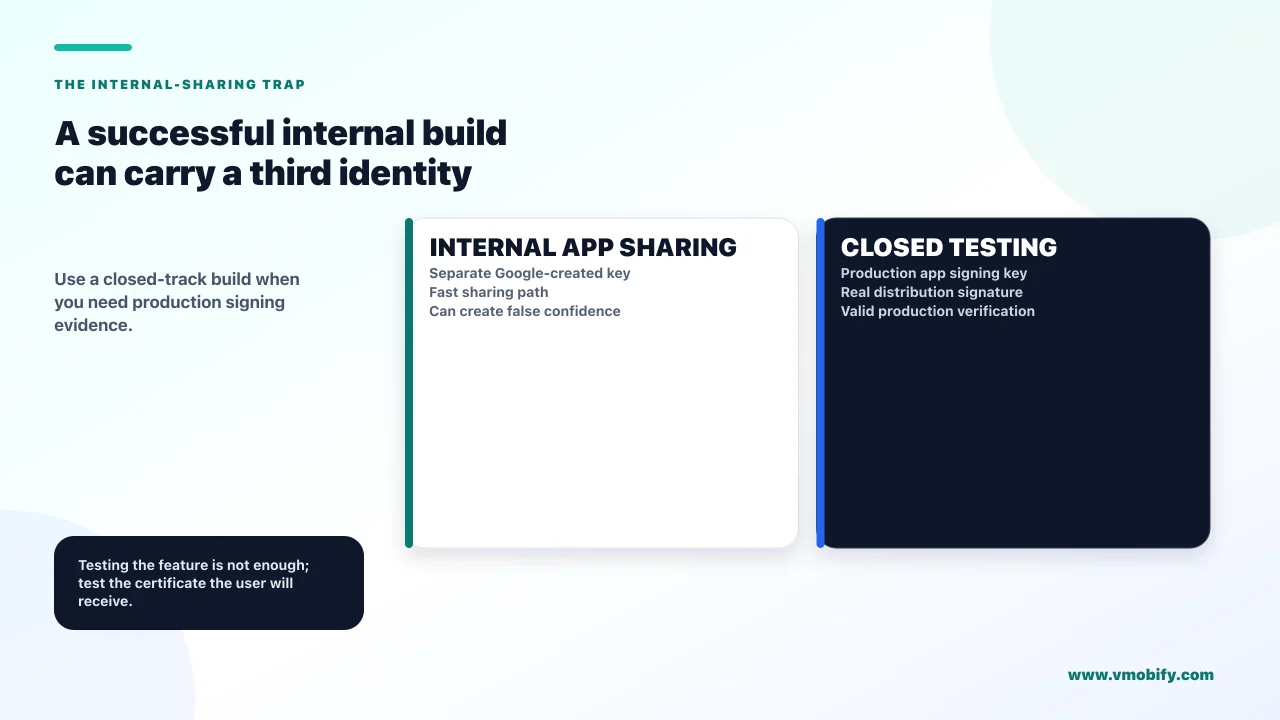
Because that build was signed with the Internal App Sharing key, which is a third certificate whose fingerprint you may have registered without realising what it was. Internal app sharing is a genuinely useful tool that happens to be an excellent way to draw the wrong conclusion about signing.
Google documents the behaviour clearly. Artifacts uploaded for internal app sharing can be signed with any key and are automatically re-signed with an Internal App Sharing key created by Google for your app. Version codes do not need to be unique, debuggable bundles are permitted, and the artifacts do not appear in the app bundle explorer or in testing and production track releases.
The practical consequences for this bug:
- An internal app sharing build proves nothing about production signing. It is a different certificate by design.
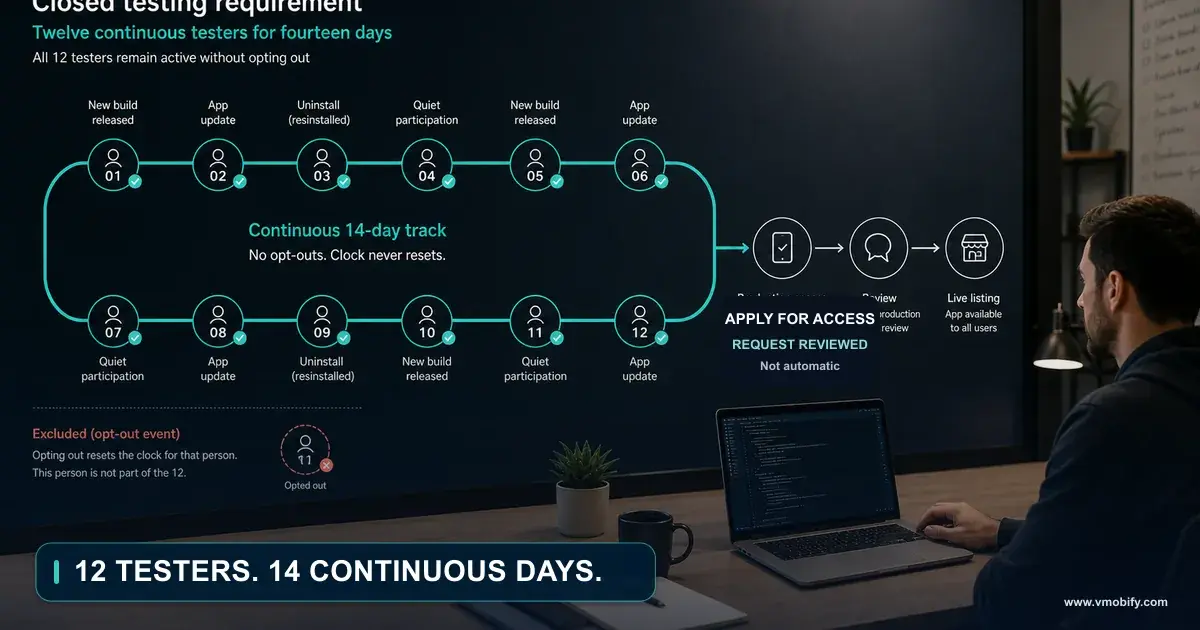
- Closed and open testing tracks are different again. Releases on those tracks go through Play App Signing, so they use the production app signing key — which makes a closed testing track the correct place to validate authentication, not internal sharing. Our guide to Play's closed testing requirement covers how those tracks work.
- The links expire. Internal sharing links expire 60 days after upload and are limited to 100 users per download link, so it is not a substitute for a testing track anyway.
The rule that follows is simple and worth writing into your release checklist: validate anything that depends on a certificate on a closed testing track, never on an internal app sharing build. Authentication, deep links and any API keyed to your app's identity all fall into that category.
What else breaks from the same root cause?
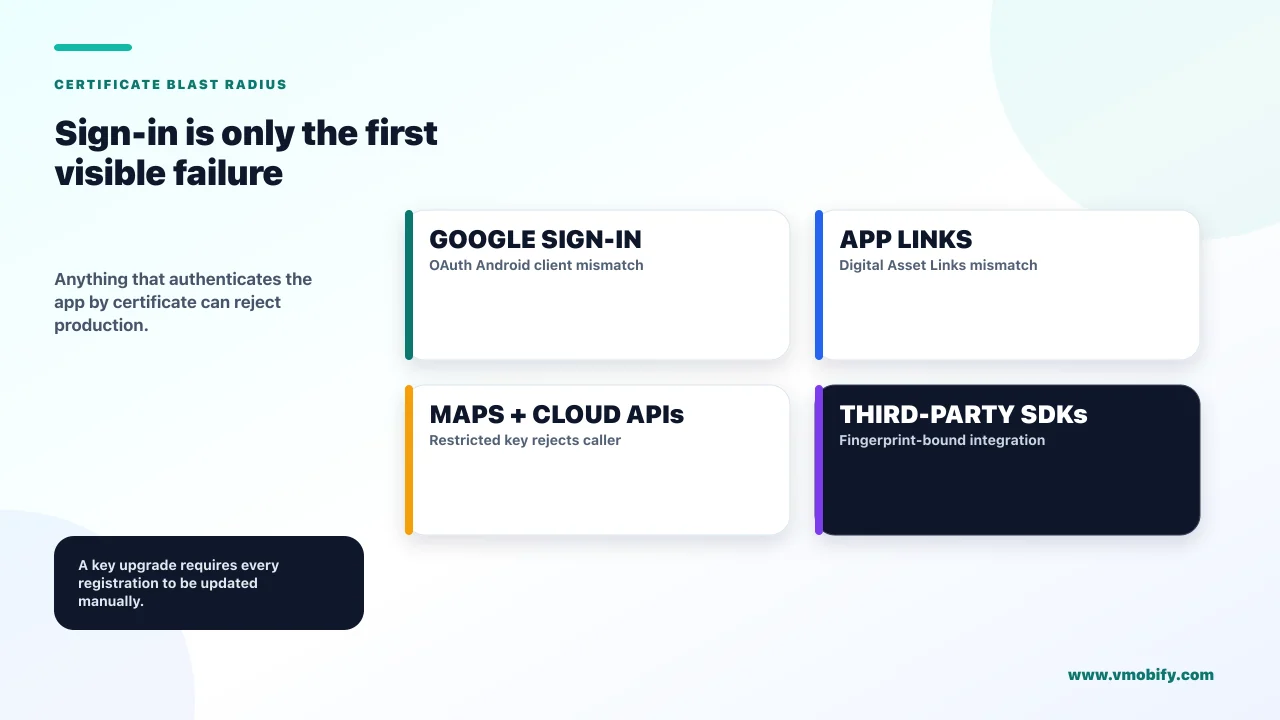
Anything that authenticates your app by its certificate — App Links verification, Maps and other Google Cloud APIs, third-party SDKs keyed to a fingerprint, and Play Integrity's own verdicts. Google Sign-In is simply the loudest symptom, which is why it gets found first.
App Links are the most commonly missed. Google's guidance on configuring website associations states that if you are using Play App Signing, the certificate fingerprint produced by running keytool locally will usually not match the one on users' devices — and that Play Console provides the correct Digital Asset Links JSON snippet for your app on the App signing page. The sha256_cert_fingerprints field supports multiple fingerprints, so debug and production builds can both be listed.
The symptom is identical in shape to the sign-in failure: your deep links open the app on your device and open a browser for everyone else. Our deep linking guide covers the wider set of ways links fail, but if links broke on the day you first shipped through Play, check this before anything else.
Google Cloud APIs such as Maps use the same restriction model, so an API key restricted to a package name and SHA-1 will reject the production build for exactly the same reason.
Play Integrity is worth understanding as a related signal rather than a victim. Its application integrity verdicts include PLAY_RECOGNIZED, meaning the app and certificate match the versions distributed by Google Play, and UNRECOGNIZED_VERSION, meaning the certificate or package name does not match Google Play records. If you are integrating Integrity, those verdicts are a useful way to confirm which certificate a given build is actually carrying.
How do you fix it right now?
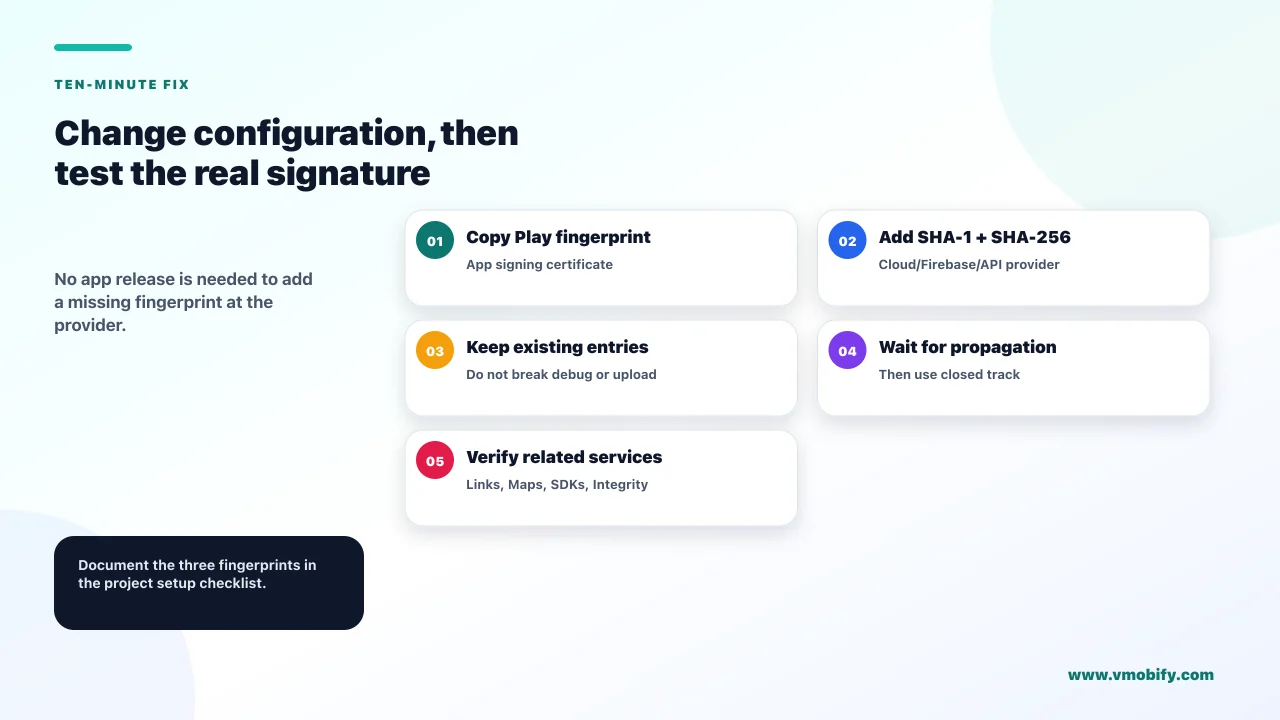
Copy the app signing fingerprint out of Play Console and add it wherever your app's identity is registered — and note that this is a configuration change, not a release. That last point matters more than anything else on this page when you are live and broken.
- Open Play Console → Release → Setup → App signing. Copy the SHA-1 and SHA-256 from the app signing key section, not from the upload key section on the same page.
- Add them to your OAuth client in Google Cloud Console, or to your Firebase Android app if you configure through Firebase. Add rather than replace, so local development keeps working.
- Update every restricted API key that names a package and fingerprint — Maps and any other Cloud API with application restrictions.
- Replace your assetlinks.json with the Digital Asset Links snippet Play Console generates on the same App signing page, and publish it at
/.well-known/assetlinks.json. - Check third-party SDKs. Any provider that asked you for a SHA-1 during setup needs the same treatment.
Because none of this touches your binary, there is no rebuild, no upload and no review. In our experience teams lose hours to this specifically because they assume a code fix is needed and start planning a hotfix release before checking whether the problem lives in a console.
Two caveats on timing. OAuth and API key changes typically take effect quickly but not always instantly, so retest rather than assuming immediate propagation. Digital Asset Links changes are subject to their own update latency and are cached, so App Link verification may not recover the moment you publish the file.
How do you verify the fix before shipping?
Test on a build that carries the production app signing certificate, which means a closed testing track release — not a local build, not a side-loaded APK, and not internal app sharing. Verification with the wrong certificate is how this bug survives to launch day in the first place.
A reliable pre-launch check looks like this:
- Push the release candidate to a closed testing track so it goes through Play App Signing and receives the same certificate production will use.
- Install from the Play link on a device that has never had a locally-built version of the app. A leftover install signed with your own key can mask the problem entirely.
- Exercise every certificate-dependent path: sign-in, any Maps or restricted Cloud API call, deep links from a real link rather than an adb command, and any third-party SDK that required a fingerprint.
- Confirm the fingerprint on the artefact if anything still fails.
keytool -printcert -jarfile app.apktells you which certificate a given binary actually carries, which converts a guess into a fact.
That last command is the one worth remembering. Most of the time lost to this problem is spent arguing about which certificate is in play. Printing it settles the argument in one line.
Build the check into your launch runbook rather than your memory. We include certificate-dependent path testing on a Play-signed build as a standing item in the launch checklists we run with clients, alongside the App Store equivalents in our guide to getting through App Review and the wider sequence in publishing your first app.
What happens when the signing key changes?
Everything you registered stops matching, and Google's documentation is explicit that re-registration is a manual step you have to perform. This turns a solved problem back into an outage if a key upgrade happens without the growth and backend teams knowing.
Google's Play App Signing guidance covers the scenarios. If your app signing key is compromised or you need a cryptographically stronger key, you can request a key upgrade — Google's current documentation frames this as an annual key upgrade for installs on Android 17, API level 37, and above. You can also change the default key before a release has been rolled out to open testing or production.
The instruction that follows is the one to note: register your new key fingerprints with your API providers. Google spells out that API providers authenticate apps using the app signing key's fingerprint, and names Maps, OAuth and Facebook Login as examples that need updating. Old fingerprints do not carry over.
There is a forward-looking wrinkle worth knowing before it surprises you: Google states that if your app uses quantum-ready hybrid signing, you must register the fingerprints for two new keys — your new classical key and your new PQC key. One app, two fingerprints to register per provider.
Write down every place your app's certificate fingerprint is registered: OAuth clients, restricted API keys, assetlinks.json, and each third-party SDK. It is a short list and nobody ever has it. When a key changes, that document is the difference between a twenty-minute update and a day of discovering integrations by watching them fail.
How do you stop this happening on the next app?
Register all three fingerprints during setup rather than at the point of failure, and make the app signing fingerprint part of your project setup checklist instead of something you look up in an emergency. This is a preventable problem with a five-minute prevention.
- At project setup, register three fingerprints: debug, upload and app signing. Google Cloud and Firebase both accept multiple SHA entries per Android app. Doing this once means local development, testing tracks and production all work from day one.
- Take the assetlinks.json snippet from Play Console rather than generating it from keytool. Google publishes the correct snippet for your app on the App signing page precisely because the local one is usually wrong.
- Never validate certificate-dependent features on internal app sharing. It uses a third key by design.
- Keep the registration inventory current so a future key upgrade is an update rather than an investigation.
The wider lesson is one we apply across every launch we run: on Android, the artefact your users receive is not the artefact you built. Anything that depends on the identity of the binary — signing, integrity, links, keys — has to be validated on something Google produced, not on something you produced. Almost every launch-day surprise in this category comes from testing the wrong artefact rather than from a mistake in the code.
If you are about to ship and want the certificate-dependent paths checked properly before you find out the hard way, tell us what you are launching, or see how we approach launch readiness alongside measurement setup so both are verified on the same build.
Frequently Asked Questions
Why does Google Sign-In fail only in the production build?+
Because Google Play re-signs your app with its own app signing key before delivering it, so the certificate fingerprint the production app presents is not the upload or debug fingerprint you registered. Google states directly that because it signs the final APK, you must register the Google-held app signing key fingerprint with your API providers.
Where do I get the correct SHA-1 for Play App Signing?+
Play Console, under Release then Setup then App signing, in the app signing key section. Google’s client authentication documentation notes that with Play App Signing the upload key certificate differs from the app signing key certificate, and that you should take the fingerprint from Play Console rather than your local keystore.
It worked when I shared the build internally. Why does it fail now?+
Internal app sharing uses a third certificate. Google re-signs internally shared artifacts with an Internal App Sharing key it creates for your app, so that build carries neither your upload key nor the production app signing key. Validate certificate-dependent features on a closed testing track instead.
Do I need to release a new build to fix this?+
No. Adding the correct fingerprint to your OAuth client, API keys and assetlinks.json is a configuration change outside your binary, so there is no rebuild, upload or review. Retest afterwards rather than assuming instant propagation, and note that Digital Asset Links changes are cached.
Will registering the app signing fingerprint break my local development?+
Not if you add rather than replace. Google Cloud Console and Firebase both accept multiple SHA fingerprints per Android app, so register your debug, upload and app signing certificates together and every environment works.
My deep links open a browser instead of the app in production. Same cause?+
Very likely. Google states that with Play App Signing the fingerprint produced by keytool locally will usually not match the one on users’ devices, and that Play Console provides the correct Digital Asset Links snippet for your app on the App signing page. Use that snippet rather than a locally generated one.
What happens to my integrations if the app signing key is upgraded?+
They stop matching until you act. Google’s guidance is to register your new key fingerprints with your API providers, naming Maps, OAuth and Facebook Login as examples, and old fingerprints do not carry over. If the app uses quantum-ready hybrid signing, two new keys must be registered.
Sources
- Google Play — Use Play App Signing — Upload key versus app signing key, and the instruction to register the Google-held fingerprint.
- Google — Authenticating your client (SHA fingerprints) — Why the local keytool certificate differs under Play App Signing.
- Android Developers — Configure website associations — The assetlinks.json structure and the Play Console snippet for Play-signed apps.
- Google Play — Share app bundles and APKs internally — Internal app sharing re-signs with a separate Google-created key.
- Google Play — Use Play App Signing (key upgrade guidance) — Key upgrades, re-registering fingerprints, and quantum-ready hybrid signing.
- Android Developers — Verify Android App Links — How Android queries assetlinks.json and the update latency involved.
- Android Developers — Play Integrity API setup — PLAY_RECOGNIZED and UNRECOGNIZED_VERSION verdicts for certificate mismatches.
About the author
Amol Pomane — Founder, Vmobify
Amol leads Vmobify, a mobile app growth agency that has driven 30M+ downloads and ranked 54K+ keywords across 300+ apps since 2013. He writes about ASO, paid user acquisition, retention, and the operational reality of scaling mobile apps in India and global markets.