Stuck in App Review: What Each Status Means
You submitted on Monday, it is Thursday, and the status has not moved. Apple publishes no review-time commitment, so nobody can honestly tell you how long it will take — but Apple does publish every status your app can be in, and most of them are asking you for something specific. Here is what each one actually means and which ones you are supposed to act on.
On this page
- Which status are you actually in?
- Why has your app been Waiting for Review for days?
- Why is your app Accepted but not on the store?
- What does Pending Apple Release actually mean?
- Should you remove a submission from review to fix something?
- What do you do with Unresolved Issues?
- Was it a metadata rejection or a binary rejection?
- How do you control when the app actually goes live?
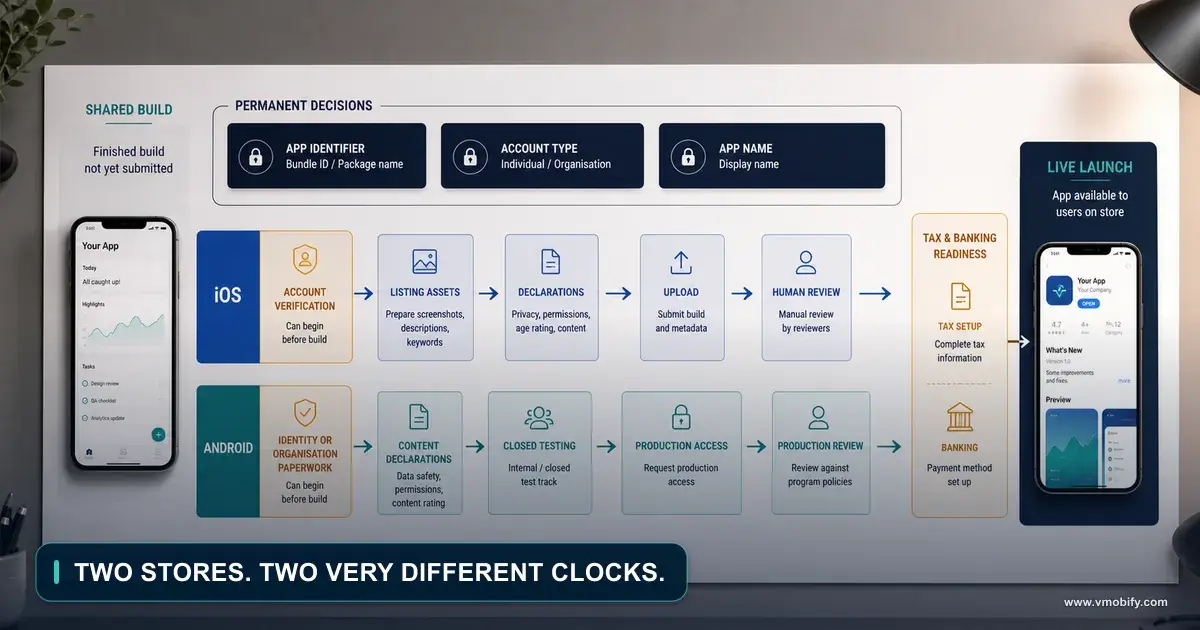
- How do you plan a launch around a process with no SLA?
- Frequently Asked Questions
Which status are you actually in?
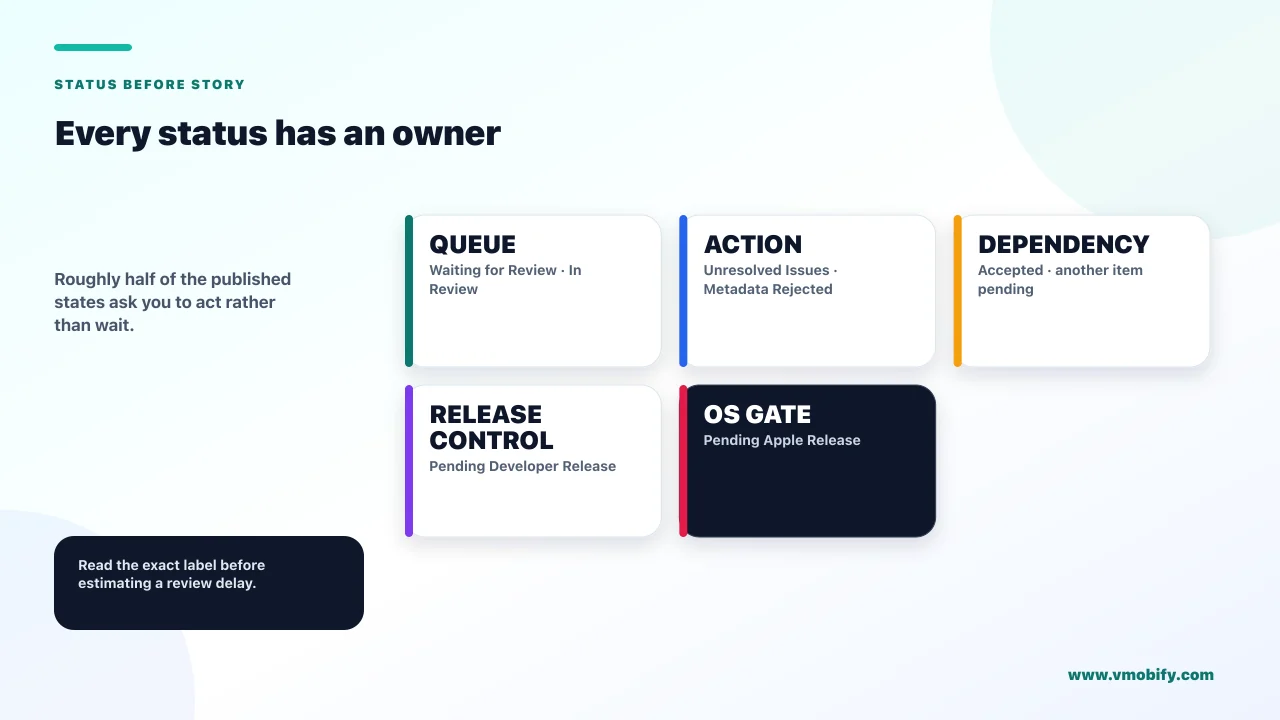
Apple publishes sixteen app statuses and five submission statuses, and roughly half of them are requests for action from you rather than a queue you are waiting in. "Stuck in review" is almost never a single condition, and treating it as one is why teams sit through days that were theirs to end.
The complete list lives in Apple's app and submission statuses reference. Sorted by what they actually ask of you:
Apple has the ball
- Waiting for Review — received, review not started
- In Review — being reviewed now
- Waiting for Export Compliance — your CCATS file is in Apple's export compliance review
- Processing for Distribution — ready for distribution within 24 hours
You have the ball
- Pending Developer Release — accepted, but you must release it
- Accepted — this item passed, something else in the submission did not
- Unresolved Issues — App Review rejected one or more items
- Invalid Binary, Rejected, Metadata Rejected — action required
Two more are neither. Pending Apple Release is a hold with a cause you can diagnose, covered below. Developer Rejected means you removed the app from review yourself, which is worth checking if nobody admits to doing it.
Across the 300+ apps we have managed since 2013, the most expensive launch delays are not long reviews. They are apps sitting in Pending Developer Release over a weekend because everyone assumed Apple still had it. Read the status before you wait on it.
Why has your app been Waiting for Review for days?
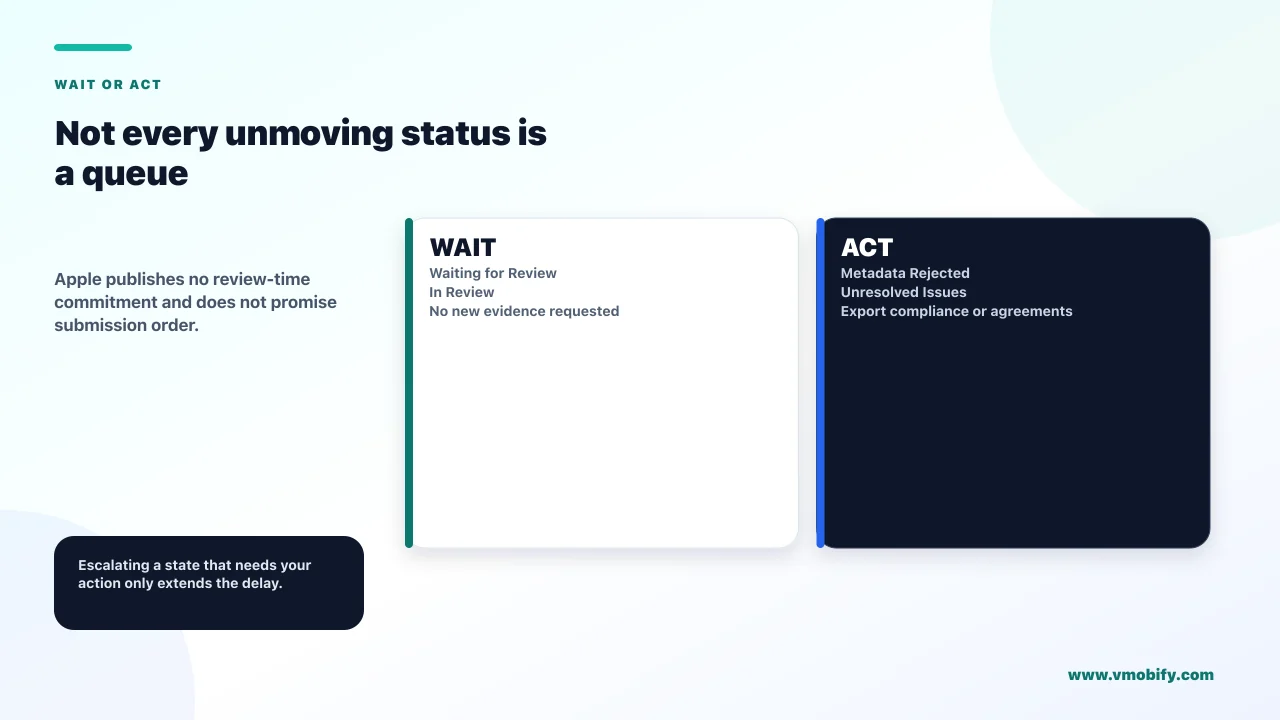
Because there is no published review-time commitment, and Apple states directly that submissions may not be reviewed in the order you submit them. This is the honest answer, and it is more useful than any number you will find elsewhere.
We deliberately do not publish a "typical App Review time" here. Every figure in circulation traces to a vendor blog extrapolating from forum anecdotes or to a third-party status tracker, and Apple publishes no service level of any kind. A number without a source is worse than no number when you are planning a launch around it.
What Apple does document is the queue's behaviour, and that is genuinely useful:
- Order is not guaranteed. Apple's overview of submitting for review notes that submissions may not be reviewed in the order you submit them. Your competitor's later submission going live first is not evidence of anything.
- You are limited to two concurrent submissions. A platform can have a maximum of two submissions under review at a time: one that includes an app version, and one that includes items such as In-App Events or custom product pages without an app version.
- Bundled items are reviewed together. If your submission includes an app version, the other items are reviewed together with that version — which means a problem with a single in-app purchase holds the whole release.
While in Waiting for Review you retain some ability to edit. Apple's status reference states you can edit certain app information and remove the build from review, but you cannot upload or edit screenshots or app previews. That last restriction catches teams who planned to swap creative after submitting.
There is no queue position to improve, and removing and resubmitting starts the review process over. If you have submitted and are simply waiting, the highest-value action available is to do nothing while you prepare the release plan for approval day.
Why is your app Accepted but not on the store?
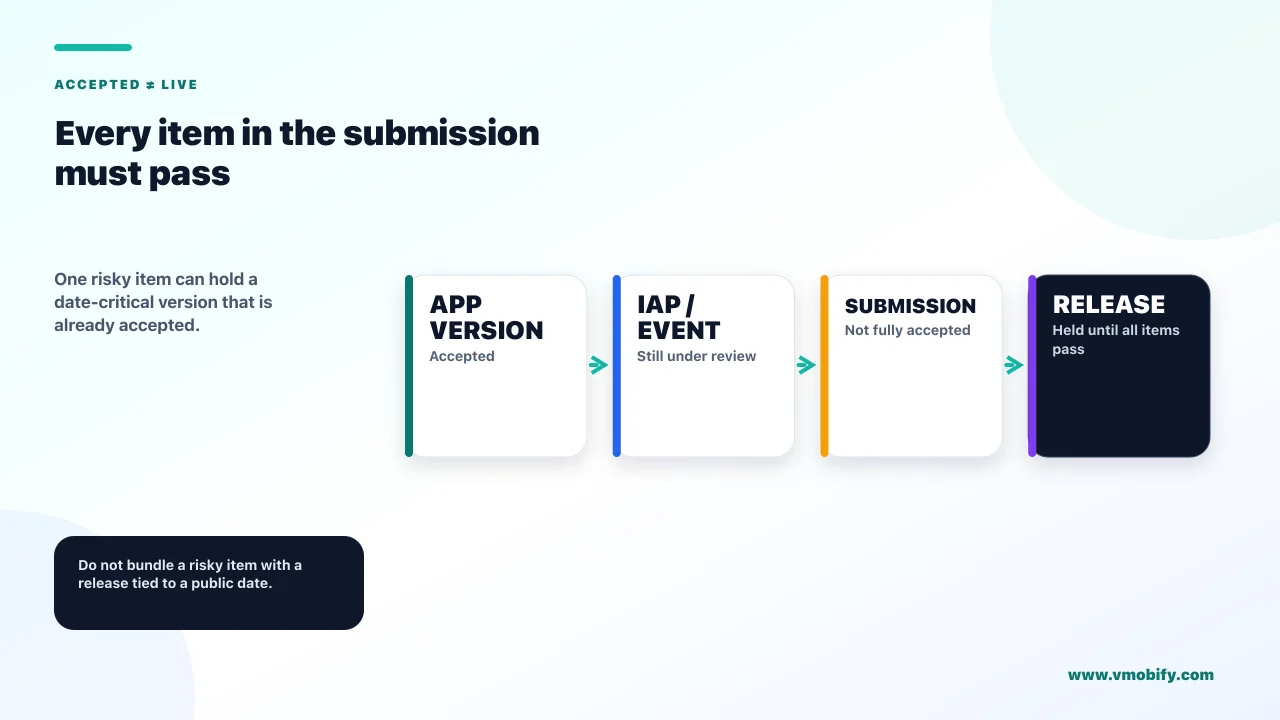
Because "Accepted" in Apple's vocabulary means this item passed while something else in the same submission did not — and the app publishes only when every item is accepted. It is the most misread status on the list, because it sounds like success.
Apple's definition is unambiguous: the item has been accepted, but one or more items in your submission were rejected, and the app can only publish when all items in the submission are accepted. You can edit the rejected items and resubmit, or remove them from the submission to move forward with the currently accepted items.
This matters because a submission is rarely just a build. Apple lets you attach auto-renewable subscriptions, non-renewing subscriptions and subscription groups, in-app purchases, In-App Events, custom product pages, product page optimisation tests, Apple-hosted asset packs and Game Center components. Any one of them failing holds everything.
The practical consequence is a release-planning rule worth adopting permanently: do not bundle a risky item with a release you need on a date. A new subscription tier or a first custom product page is exactly the kind of item that attracts a question from review, and bundling it with a build your marketing calendar depends on converts an isolated problem into a launch delay.
The other half of that status — Pending Developer Release — means the opposite and is genuinely good news: your app was accepted, but you still need to release it for distribution. Nobody is waiting on Apple. Apple will email a reminder if a version stays in that state for more than 30 days, which is a sign of how often this is simply forgotten.
What does Pending Apple Release actually mean?
That Apple is holding your version until the corresponding operating system version releases publicly — and the usual cause is a deployment target you set without meaning to. This is the status that produces the most bewilderment, because nothing about it suggests a developer-side cause.
Apple's own description explains both the hold and the fix: Apple is holding your app version until the corresponding Apple operating system version releases to the public; if you think an app should be released on the existing operating system versions, review the deployment target set in your app build; and if you rebuild with a different deployment target, reject the build for this version and submit the new version.
In plain terms: your build declares that it requires an OS version that is not yet publicly released. Perhaps someone updated Xcode and the project's minimum deployment target moved with it. Perhaps an SDK was adopted that raised the floor. Either way, Apple will not ship an app to a public that cannot run it.
Look at your minimum deployment target in the build you are about to upload and confirm it is an OS version that is publicly available today. It takes seconds and it is the entire cause of this status. Rebuilding and resubmitting after the fact means a fresh trip through review — the cost of the mistake is a full review cycle, not a settings change.
There is a legitimate use of this state too. If you are deliberately shipping a feature that depends on an OS version announced but not yet released, this is the expected behaviour and the timing is out of your hands. The distinction between the deliberate case and the accidental one is simply whether you meant to set that deployment target.
Should you remove a submission from review to fix something?
Rarely, because Apple states plainly that if you resubmit, the review process will start over — you are trading everything you have already waited for against the value of the fix. This is a real decision with a real cost, and it is worth making deliberately rather than reflexively.
Apple's guidance on removing a submission from review sets out the mechanics. You can remove an app that is in Waiting for Export Compliance, Waiting for Review, In Review, Pending Developer Release or Pending Apple Release. The app and any other items in the submission are removed from the queue, the app status changes to Developer Rejected, and if you resubmit the review process starts over. The action requires the Account Holder, Admin or App Manager role.
So the decision reduces to one question: is the thing you want to fix worse than starting the wait again?
- A crash on launch or a broken core flow. Remove it. Shipping that build is worse than any delay, and a rejection would cost you the cycle anyway.
- A wrong price, a legal problem, or anything you cannot change after release. Remove it. These are expensive to undo once live.
- A typo in the description, or a screenshot you have improved. Do not remove it. Metadata can be addressed separately, and the improvement is not worth a full review cycle.
- A feature someone wants added. Never. That is the next version.
The status the app lands in — Developer Rejected — is worth recognising for a second reason. If you find an app in that state and nobody remembers rejecting it, somebody with an Admin or App Manager role removed it from review. That is a five-minute conversation that saves a day of confusion.
What do you do with Unresolved Issues?
Either remove the rejected items or edit and resubmit them — and know before you start that you get one edit before resubmission and cannot add anything new to the submission. The constraints here are specific and they shape what your best move is.
Apple's page on managing a submission with unresolved issues states that to consider a submission approved, App Review needs to approve all items; that to continue with the accepted items you need to either edit and resubmit or remove the rejected items; and that when a submission has a status of Unresolved Issues you cannot add more items to it.
Three operational constraints follow, and the third catches people out:
- You can edit items in a submission once before resubmission. Plan the edit properly rather than iterating.
- Removing all rejected items moves the submission to Completed and it is ready for release — a genuinely useful escape hatch when one optional item is blocking a build you need live.
- You cannot add a removed item back to the same submission. Removal is one-directional. If you strip out a subscription to unblock the release, it goes in a future submission.
Use the escape hatch when the rejected item is not the point of the release. Shipping the build now and resubmitting the in-app event next week is almost always better than holding a working release hostage to an optional extra.
Communication runs through App Review messages in App Store Connect, where Apple states you can correspond and include attachments such as screenshots and supporting documents until you resubmit, with a 4,000 character limit on replies. Use it properly — a reply that answers the specific guideline cited, with a screenshot or a screen recording showing the behaviour, resolves faster than an assertion that the reviewer was mistaken. Our guide to the most common App Store rejection reasons covers what the citations usually mean.
Was it a metadata rejection or a binary rejection?
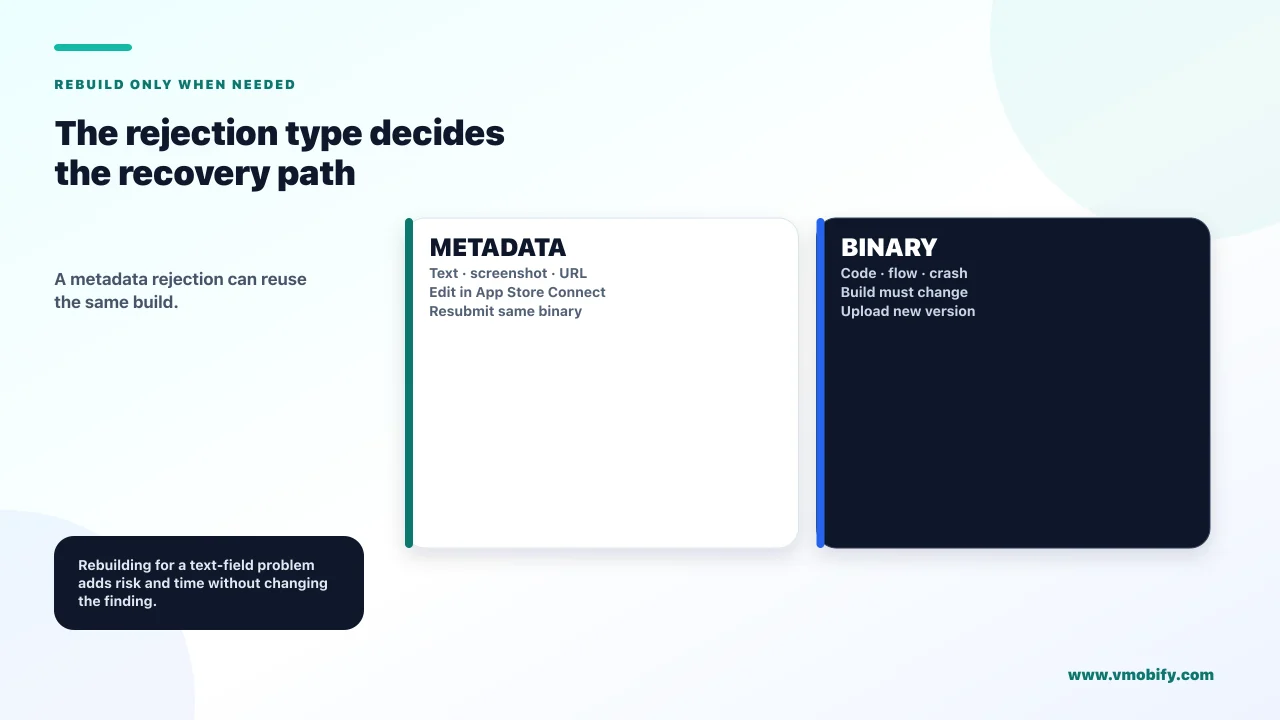
The difference decides whether you need a new build at all — and Apple states that a metadata rejection can be resolved by resubmitting the same build. Teams routinely rebuild, re-archive and re-upload for a problem that lived entirely in a text field.
Apple separates the two states explicitly. Metadata Rejected means App Review did not accept your metadata: read the message, edit the metadata to resolve the issue, and reply to the message from App Review. Rejected means the app itself was not accepted, and App Review notifies App Store Connect users with the Admin, App Manager or Developer role with the issues.
Apple's guidance on replying to App Review is direct on the consequence: if your app was rejected for a metadata issue, you can resubmit the same build after resolving the issue. No rebuild. No new binary. No fresh upload and processing wait.
There is a third state that looks like a rejection and is not. Invalid Binary means you submitted to App Review but the build does not meet the current binary requirements, and you must upload a new build or select one that does. That is a packaging problem, not a review judgement, and it is resolved in the build pipeline rather than in a conversation.
Metadata Rejected, Rejected and Invalid Binary have three different remedies: edit text and resubmit the same build, address a guideline issue in the app or the reply, and fix the packaging respectively. We have watched a team burn two days rebuilding for a rejection whose message was about a screenshot.
How do you control when the app actually goes live?
Choose the release option before you submit, because the default determines whether approval publishes you instantly or hands control back to you. This is the difference between an app appearing at 3am unannounced and one launching when your team is awake.
Apple's page on selecting an App Store version release option gives three choices: manually release this version, which moves the app to Pending Developer Release on approval and waits for you; automatically release after approval, which publishes immediately; and automatically release no earlier than a specified date and time.
Two details worth knowing. Releasing is per platform — if you have versions for multiple platforms in Pending Developer Release, each must be released separately. And after manually releasing, you can select Cancel This Release from the message on the version page.
For updates, phased release is the safety net. Apple's documentation on releasing a version update in phases sets out a fixed seven-day schedule of 1%, 2%, 5%, 10%, 20%, 50% and 100%, with the ability to pause for a total of up to 30 days and no limit on the number of pauses.
Two limits on that safety net matter. Phased release applies to version updates, not new apps — a first launch is always at full exposure. And it governs automatic updates only: Apple states that apps and app updates in phased release can be manually downloaded from the App Store by anyone at any time. It reduces blast radius; it does not contain a release.
How do you plan a launch around a process with no SLA?
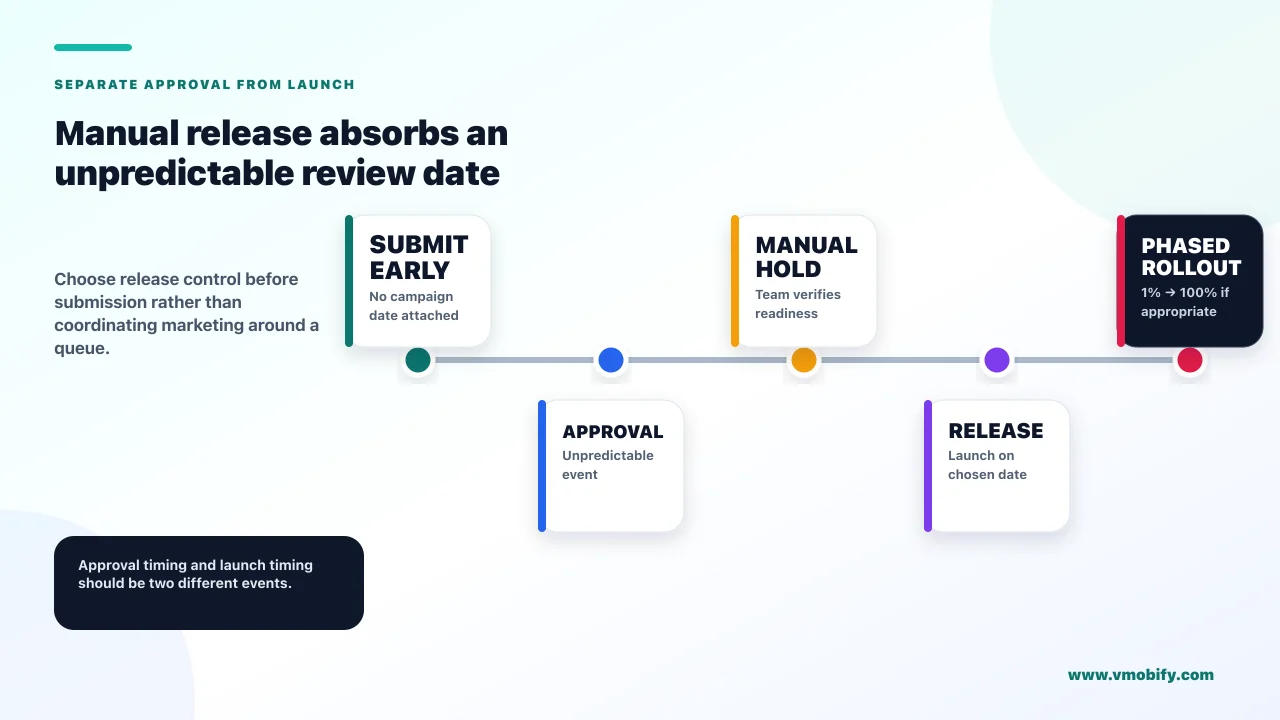
By separating approval from launch, so that an unpredictable review date stops being a marketing date. The whole problem dissolves once those two events are allowed to happen on different days.
- Submit with manual release selected. Approval then parks the app in Pending Developer Release and you choose the moment. This single setting removes review timing from your launch plan entirely.
- Submit early and unbundled. Get the build approved well ahead of the date, with no optional items attached that could produce Unresolved Issues.
- Check the deployment target and the export compliance answers before uploading. Both cause holds that cost a full cycle to fix afterwards.
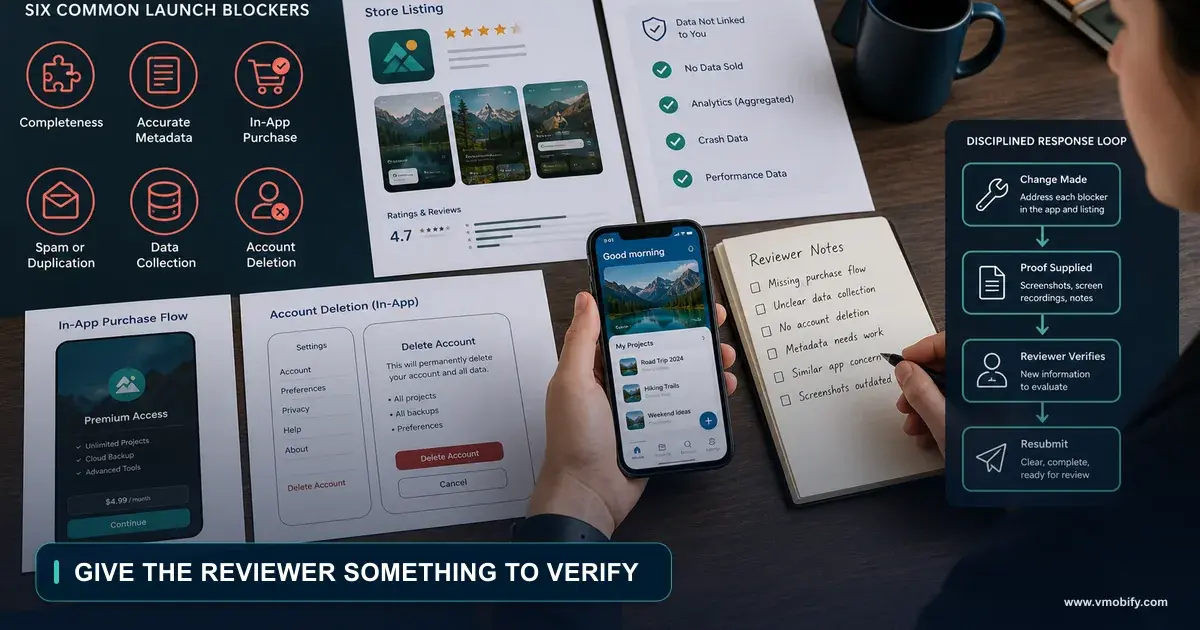
- Have working demo credentials ready. A login with no working account is among the most avoidable rejections there is.
- Announce nothing until the status is Ready for Distribution. Not Accepted, not Pending Developer Release — live.
- For updates, use phased release and know what it does not cover. Manual downloads bypass it.
Note one more state before you celebrate: Processing for Distribution means the app is processing and will be ready for distribution within 24 hours. Approval is not availability, and a launch email timed to the approval notification can land before anyone can download anything.
If you are sequencing a launch around all of this for the first time, our guides to publishing your first app and pre-launch marketing cover the wider plan, and the TestFlight equivalent of this article covers the beta path that precedes it. If you would rather have someone check the plan before you submit, tell us what you are shipping.
Frequently Asked Questions
How long does App Review take?+
Apple publishes no service level for review, so any specific figure you find comes from vendor blogs or third-party trackers rather than Apple. What Apple does state is that submissions may not be reviewed in the order they are submitted, which means a competitor going live before you is not evidence about your submission.
My app says Accepted but it is not on the App Store. Why?+
Accepted means that item passed while one or more other items in the same submission were rejected, and Apple states the app can only publish when all items in the submission are accepted. Edit and resubmit the rejected items, or remove them to move forward with what was accepted.
What is Pending Apple Release?+
Apple is holding your version until the corresponding operating system version releases publicly. Apple’s guidance is to review the deployment target set in your build — if you did not intend to require an unreleased OS version, rebuild with a lower target, reject the current build and submit the new version.
Can I fix a typo without losing my place in review?+
Not by removing the submission — Apple states that if you resubmit, the review process starts over. While in Waiting for Review you can edit certain app information, but you cannot upload or edit screenshots or app previews. For a typo, waiting and fixing it in the next version is usually the better trade.
Do I need a new build after a metadata rejection?+
No. Apple states that if your app was rejected for a metadata issue you can resubmit the same build after resolving the issue. Metadata Rejected, Rejected and Invalid Binary are three different states with three different remedies, so read which one you are in before rebuilding.
How do I stop my app going live the moment it is approved?+
Choose manual release before you submit. On approval the version moves to Pending Developer Release and waits for you, and Apple emails a reminder if it sits there more than 30 days. You can also schedule automatic release no earlier than a date and time you specify.
Does phased release protect a new app launch?+
No. Phased release applies to version updates only, not new apps, and it governs automatic updates — Apple states that apps in phased release can be manually downloaded by anyone at any time. It reduces blast radius on an update; it does not contain a first launch.
Sources
- Apple — App and submission statuses — Verbatim definitions of all sixteen app statuses and five submission statuses.
- Apple — Overview of submitting for review — Submissions may not be reviewed in order; the two-concurrent-submission limit.
- Apple — Manage a submission with unresolved issues — All items must be approved; one edit before resubmission; removals are final.
- Apple — Remove a submission from review — Which states allow removal, and that resubmission starts review over.
- Apple — Reply to App Review messages — The message centre, attachments, and resubmitting the same build after metadata issues.
- Apple — Select an App Store version release option — Manual, automatic and scheduled release, and the per-platform requirement.
- Apple — Release a version update in phases — The seven-day schedule, the 30-day pause allowance, and the manual-download bypass.
About the author
Amol Pomane — Founder, Vmobify
Amol leads Vmobify, a mobile app growth agency that has driven 30M+ downloads and ranked 54K+ keywords across 300+ apps since 2013. He writes about ASO, paid user acquisition, retention, and the operational reality of scaling mobile apps in India and global markets.